Repairing Cracks on a Laptop (No electricity involved)

May 26th, 2010

We have all heard of a sob story involving someone dropping their laptop or tripping over the power cord causing the laptop to flip off a table, a bench, or a bed. Well, believe it or not, these stories are so common that I was able to add this entry “Repairing Cracks on a Laptop” to our blog. The “No electricity involved” in the title simply means no electrical component or wiring was severed on these laptops. I want to make it perfectly clear It took several months to finish this entry because I had to actually wait for customer’s with cracked laptops and notebooks (I wanted real scenarios) to complete this task.

Tools needed for this task include:
1. Common sense (You will understand later why this is the first tool).
2. Putty knife, razor or small knife.
3. Small cross-tip screwdriver (Phillips), for disassembly.
4. Product Name: PC METAL
 Description: Hand Moldable Multi-Purpose Epoxy Putty Stick
(This product is used for auto and plumbing repairs. Hopefully, I just narrowed it down to the type of stores that sell this product. Also, I do not do free advertisements, therefore, from this point on I will reference this product as “putty”).
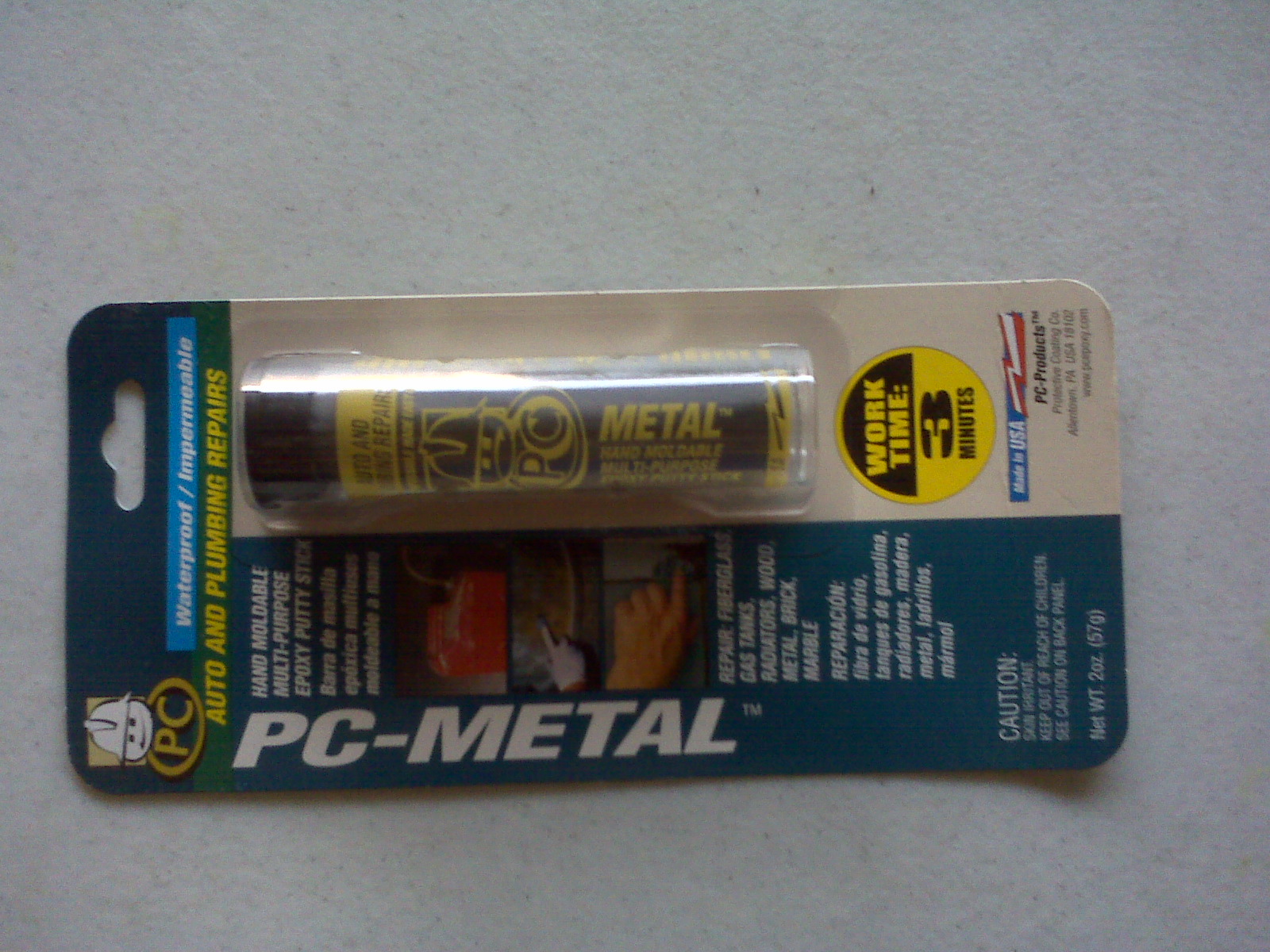
PC Metal

PC Metal - Hand Moldable Multi-Purpose Epoxy Putty Stick

1st Scenario: A local customer was walking down a flight of stairs with their laptop in one hand and the power cord in the other hand while it was still connected to the laptop. The dangling power cord was stepped on causing the laptop to be snatched; it hit the stairway landing on the closed lid cover side and cracked at the lower right corner. The laptop cover cracked pretty good, but no internal damage.
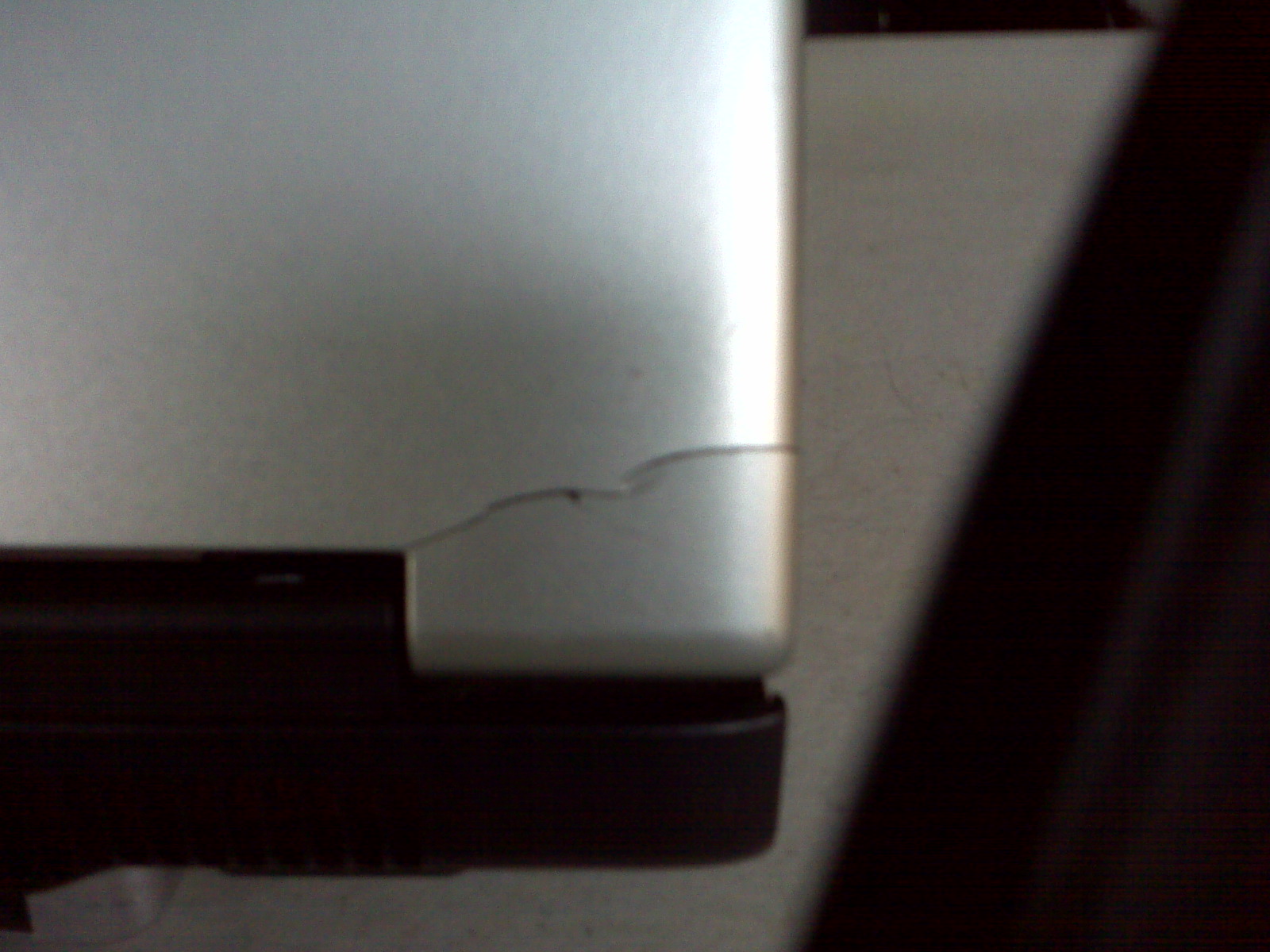
Crack on Laptop Cover

Crack on Laptop Cover

A quick solution: Open the putty product and cut off a small piece.
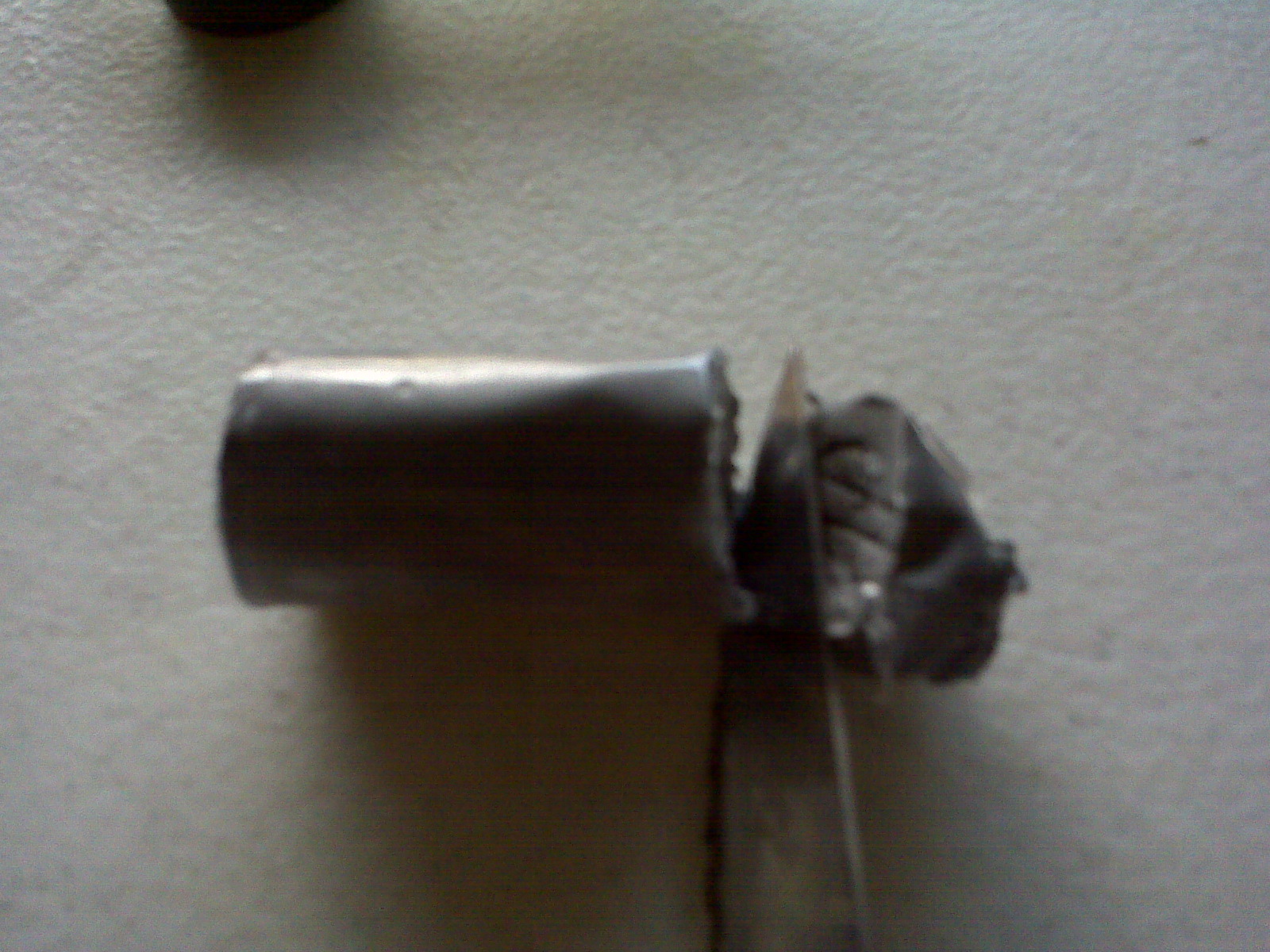
Cut a slice of putty

Cut a slice of putty

Roll the putty into a ball to mix the inner and outer compounds together.

Roll Putty
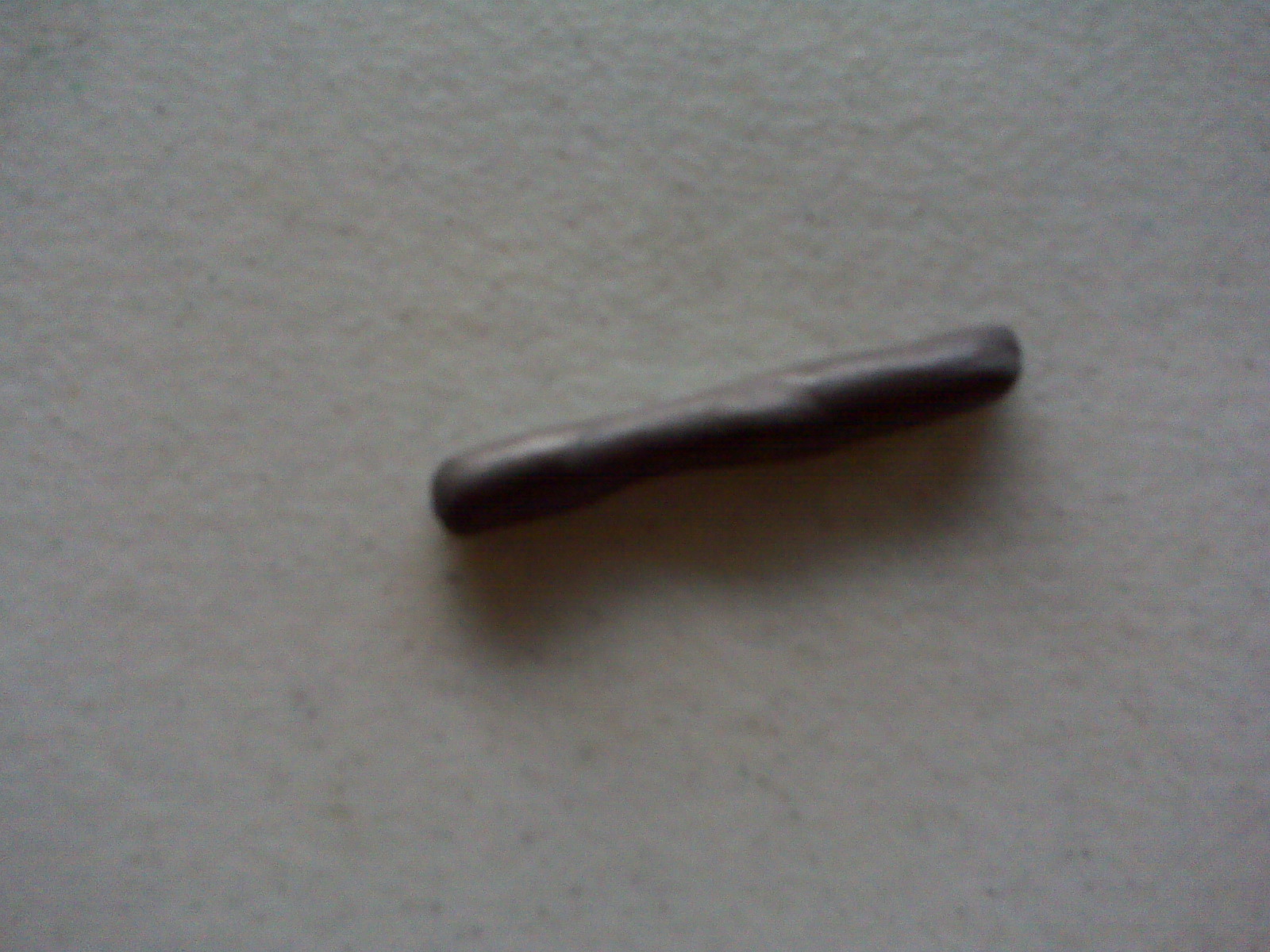
Roll Putty

Mix Putty

Mix Putty

Spread the putty over the crack then use your fingers to spread it evenly until the crack is covered. Use your putty knife to cut off any extra putty you do not need.  A quick fix for a small crack (This task is complete).
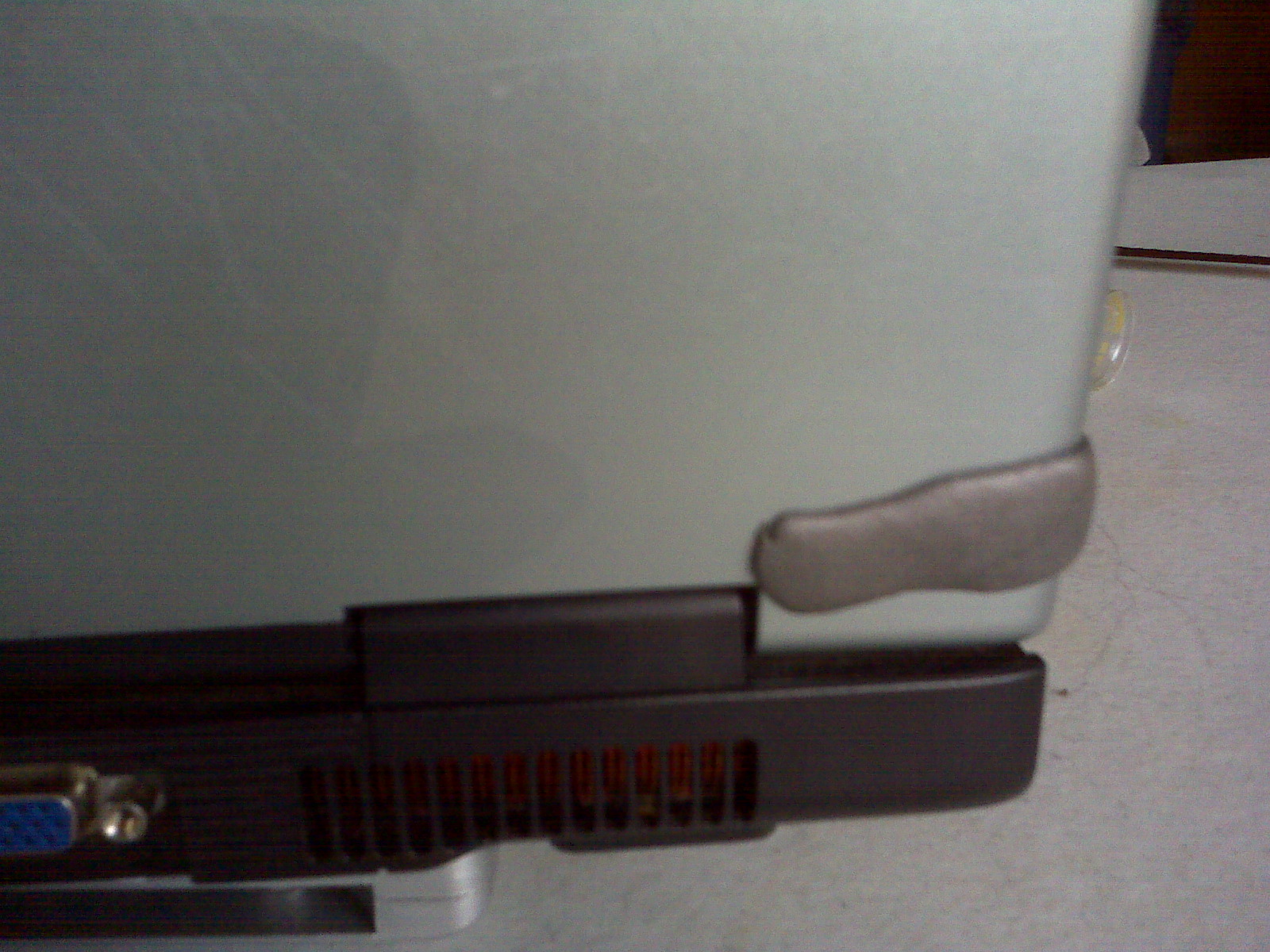
 

Spread Putty

Spread Putty

2nd Scenario: 3 different people, 3 different laptops, and the same scenario: Someone tripped over the power cord while these customers were using their laptop.
Laptop #1: power jack disappeared inside the base of the laptop (Still connected, but not visible).
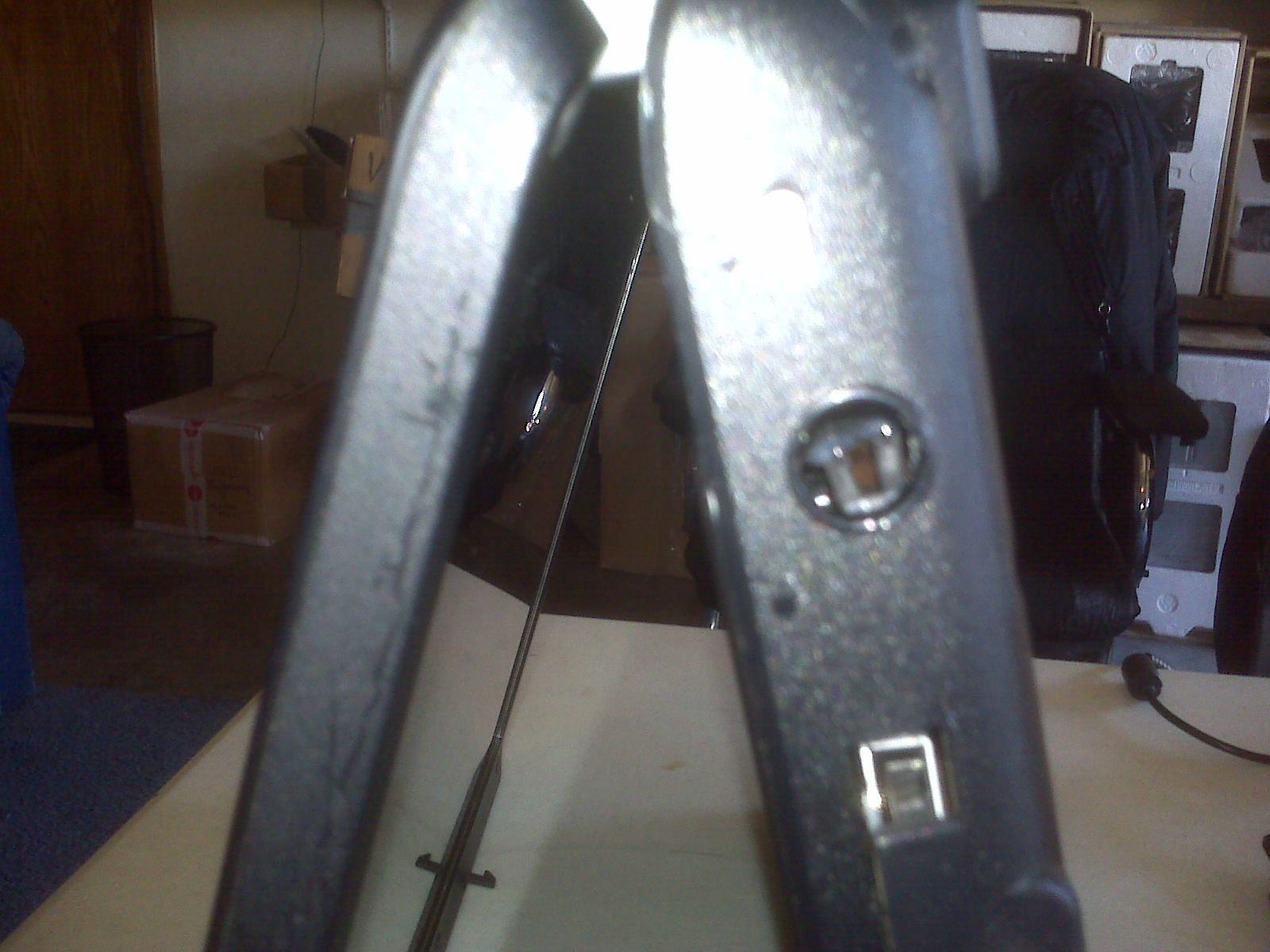
Power Jack Disappeared inside the base of the laptop

Power Jack Disappeared inside the base of the laptop

Laptop #2: power jack is dangling off the side hinge (Still connected, but customer is unable to completely close the cover).
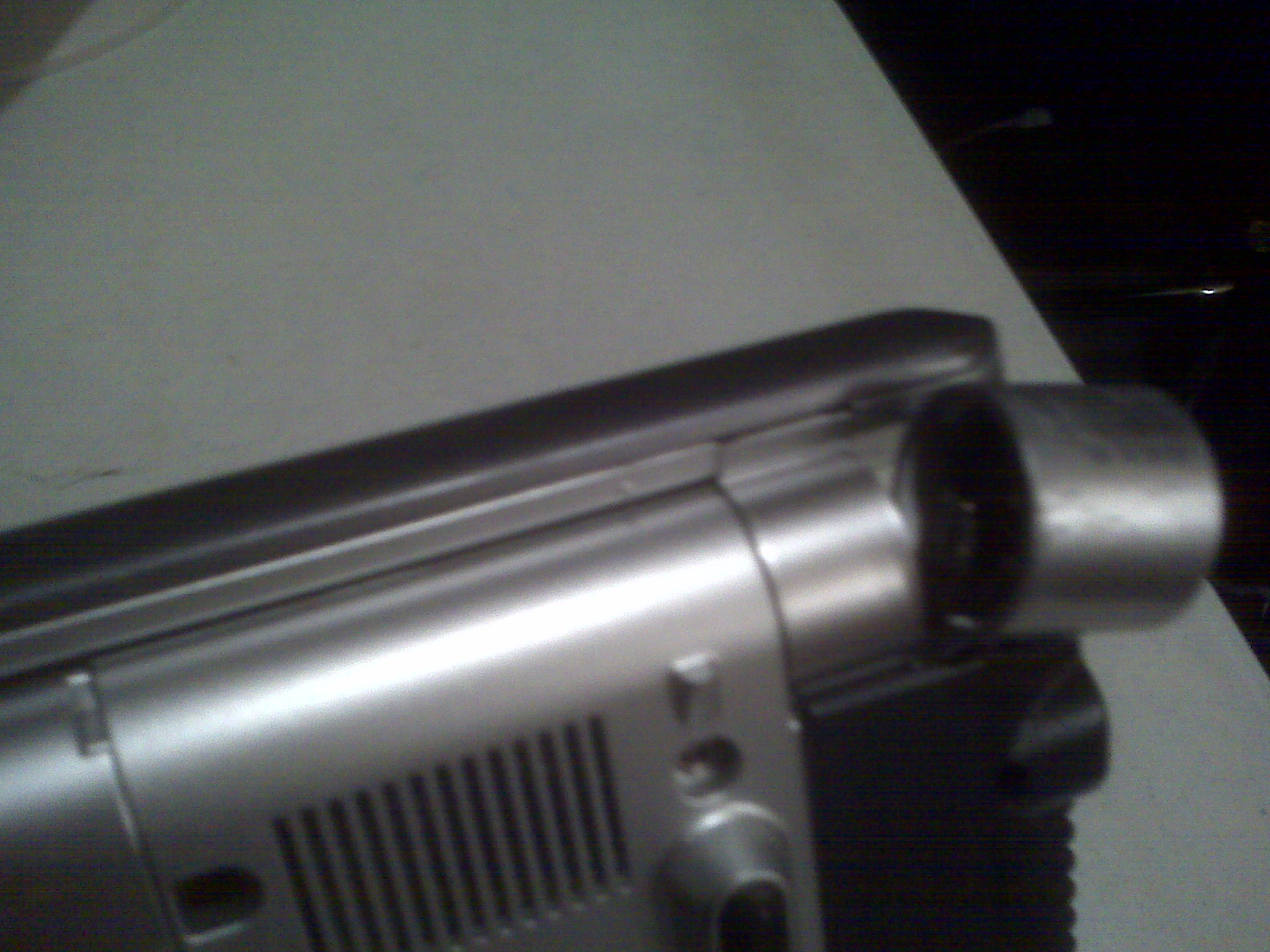
Power Jack is dangling off the side hinge

Power Jack is dangling off the side hinge

Laptop #3: Power cord broke off inside power jack and no plastic sidewall to hold the power jack in place.
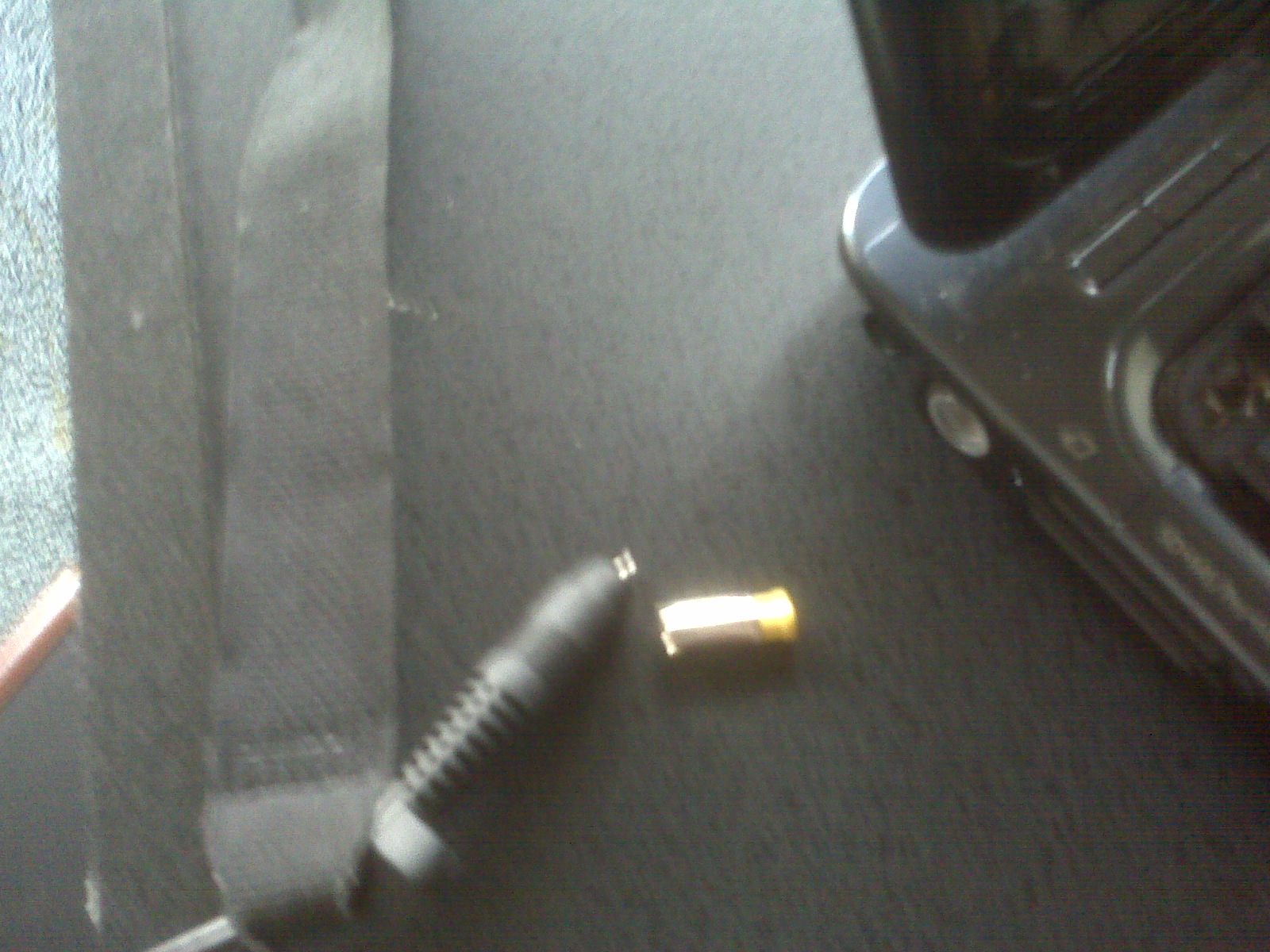
Power cord broke off inside power jack

Power cord broke off inside power jack

As I stated earlier, remember the first tool? Well, this is a good time to pull out that first tool. In order to complete these task the laptop has to be disassembled from the base to repair the damages.

 ***Prepare the notebook for disassembly***
Remove power adapter cord and battery pack from your notebook to ensure no power source is connected.
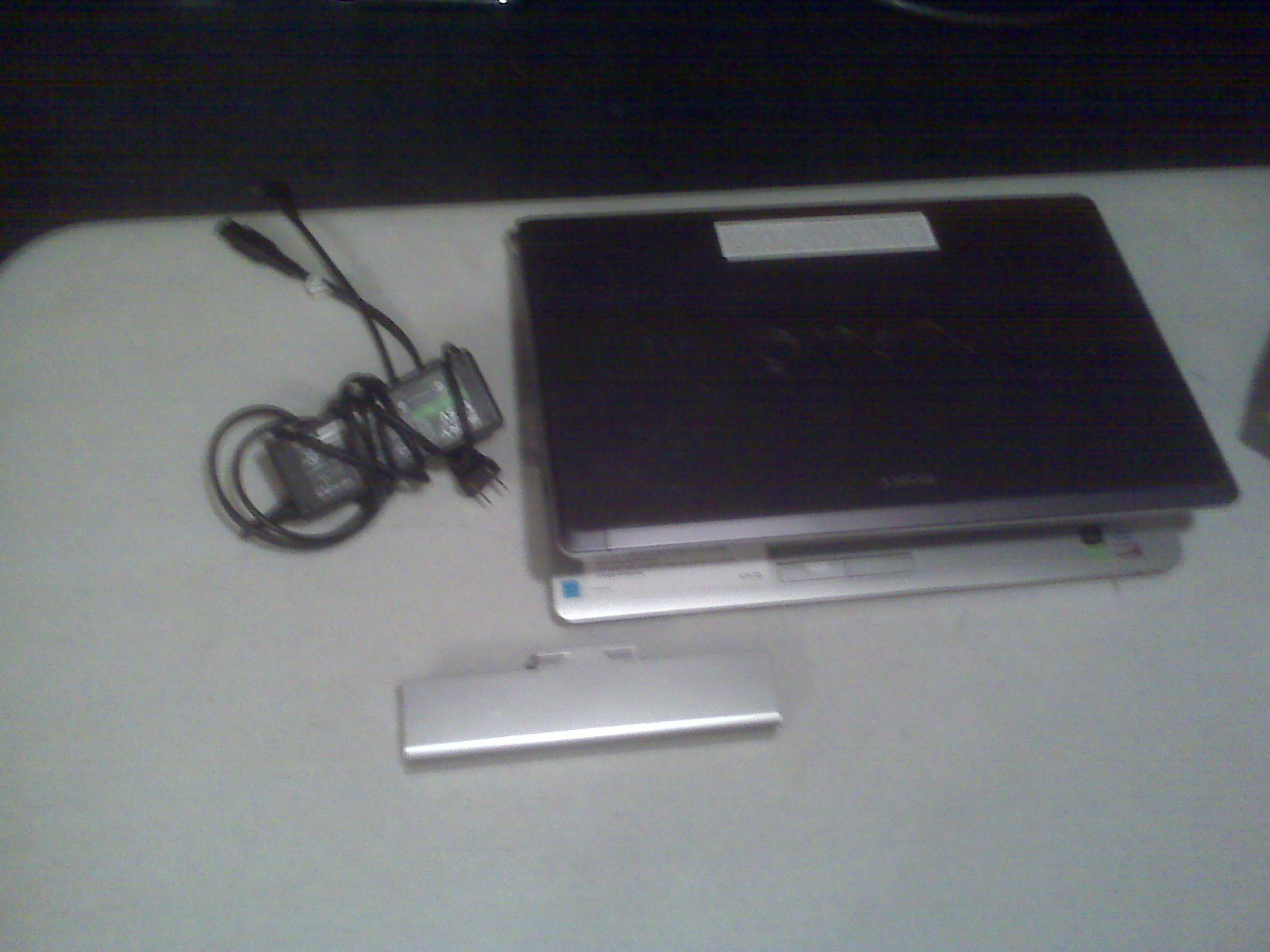
Prepare the notebook for disassembly

Prepare the notebook for disassembly

My objective does not include showing you how to disassemble a laptop (You can read my other entries on how to do that). My purpose is to stabilize the power jack in order to use the power cord. Remember the power jack connection is not severed, but there is no plastic sidewall to hold the power jack in place.

Solution: The power cord on laptop #3 was destroyed; therefore, I had no choice in replacing the power cord with a universal power cord with a convertible DC tip.
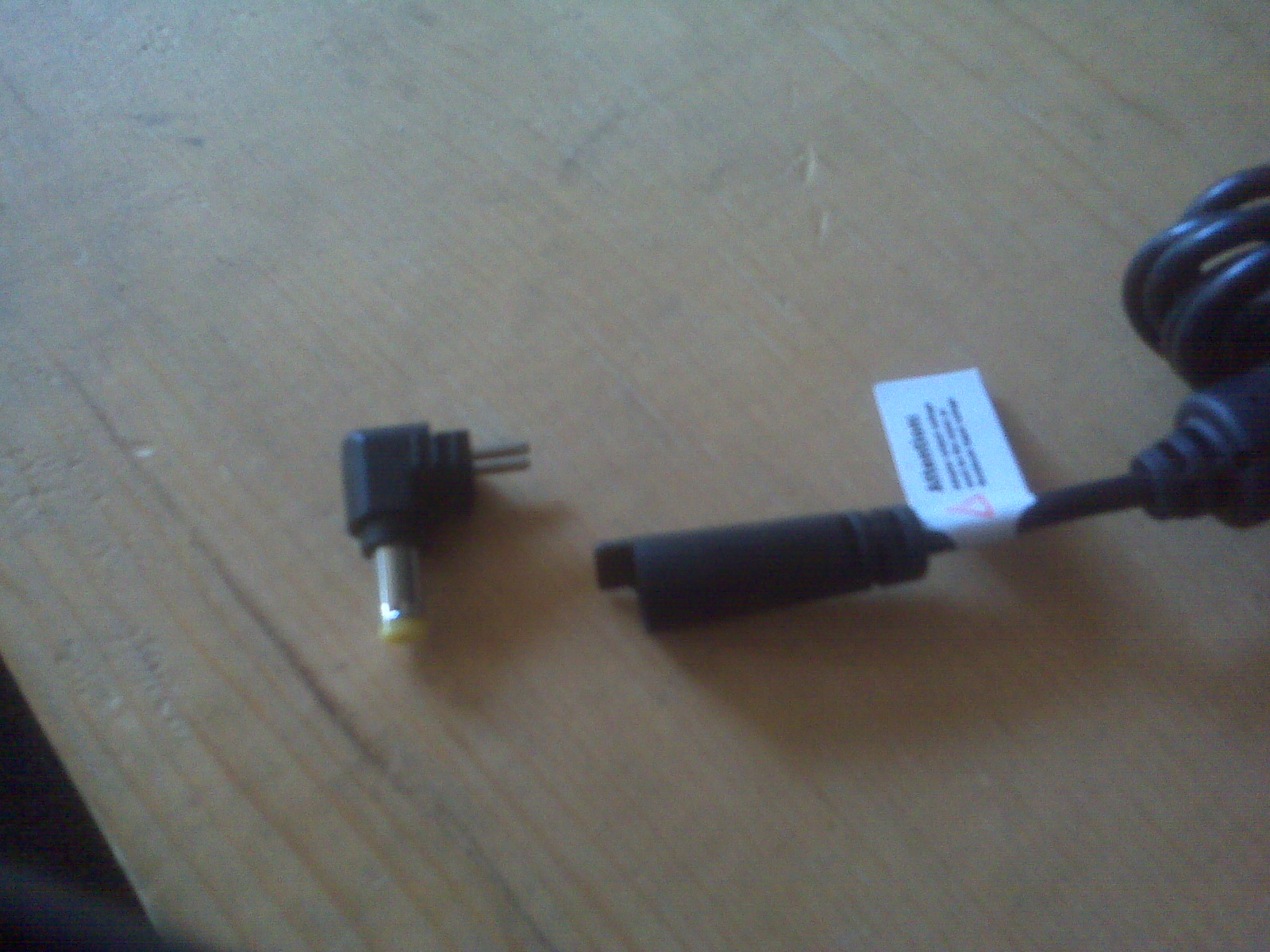
DC tip

DC tip

I used the putty to hold the DC tip in place, which, in turn, provided a new sidewall for the power jack and DC Tip. I used the putty on Notebook #1 inside the base cover, it looks normal so I did not bother taking a picture of it.
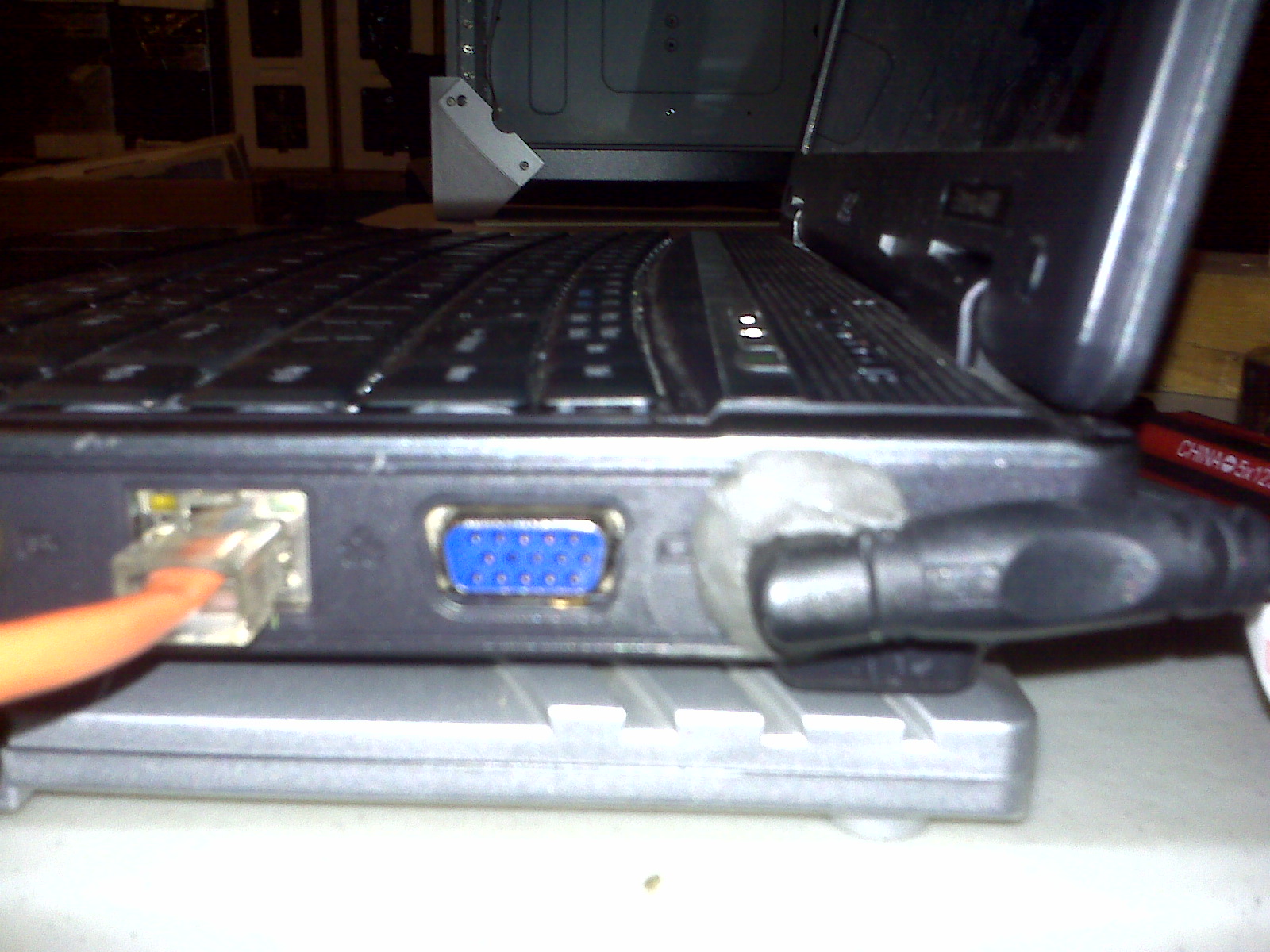
Latop #3 with putty holding DC tip and Power Jack

Latop #3 with putty holding DC tip and Power Jack

Solution for Laptop #2: It looks worst than it actually is. I placed putty on both sides of the power jack hinges to hold the power jack in place. It works very well and the laptop cover is able to open and close.
ALL TASKS ARE COMPLETE.
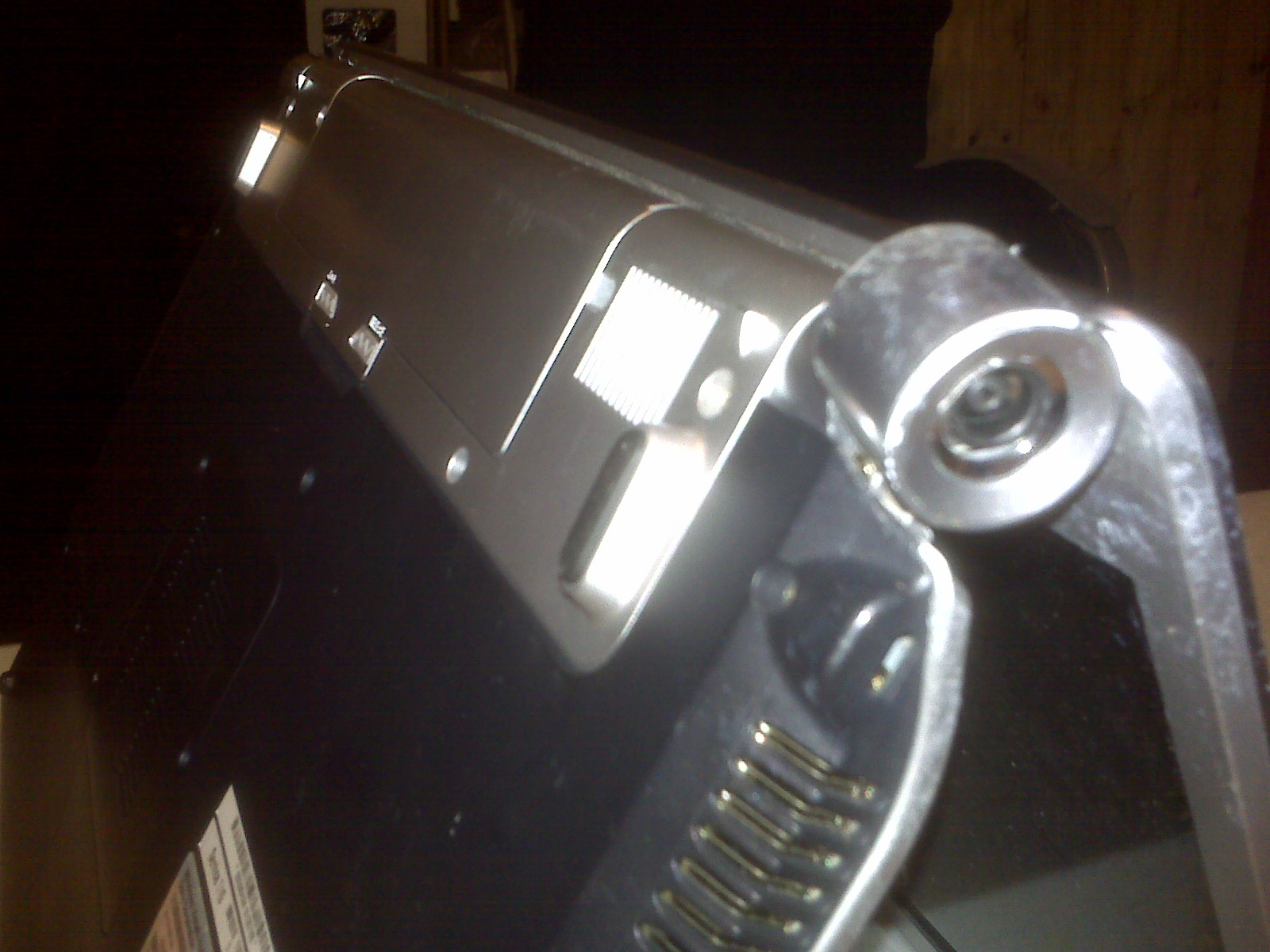
Laptop #2 Side View of Power Connection "Before Picture"
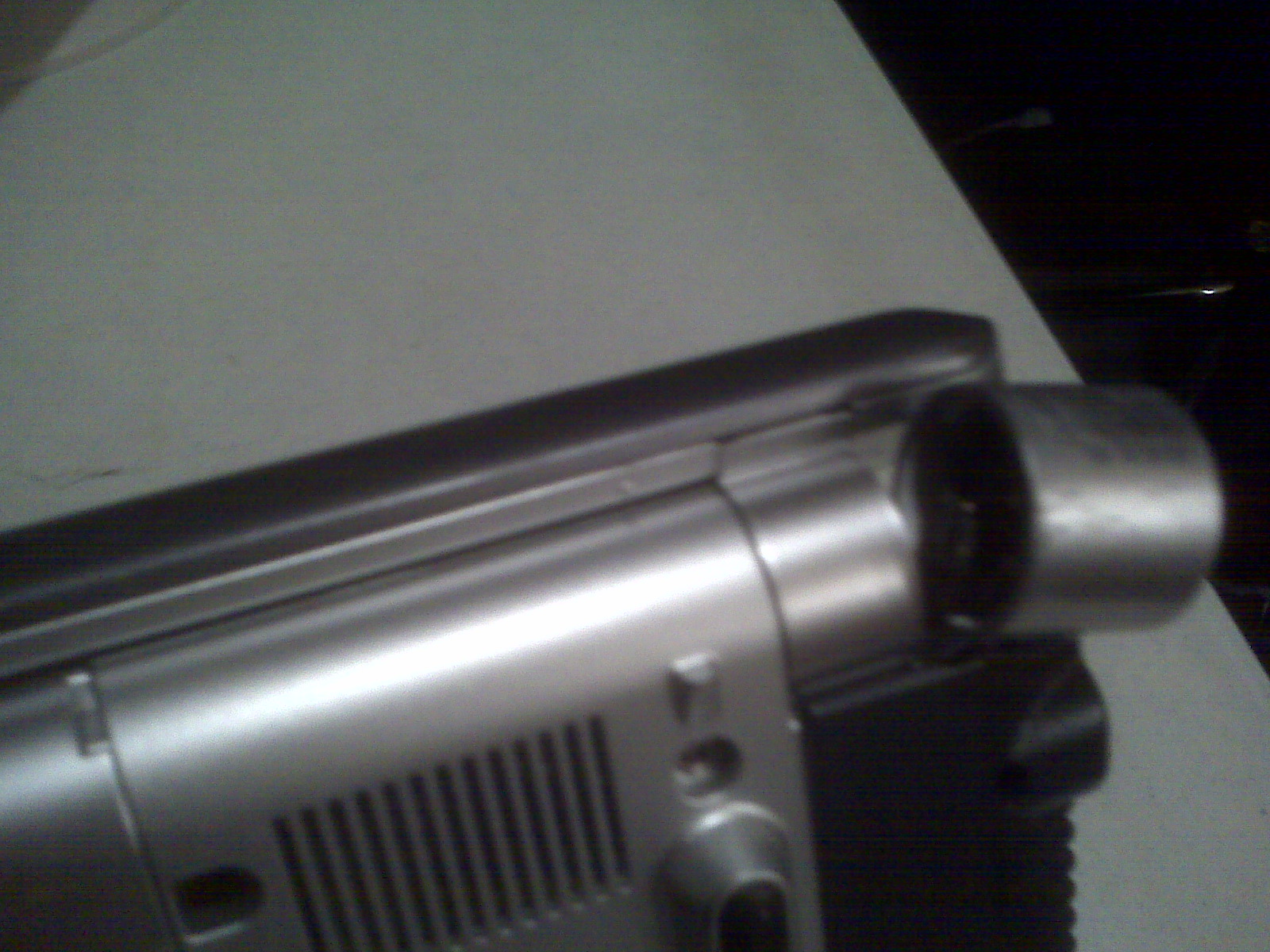
Laptop #2 Side View of Power Connection "Before Picture"

Laptop #2 Back View of Power Connection "Before Picture"
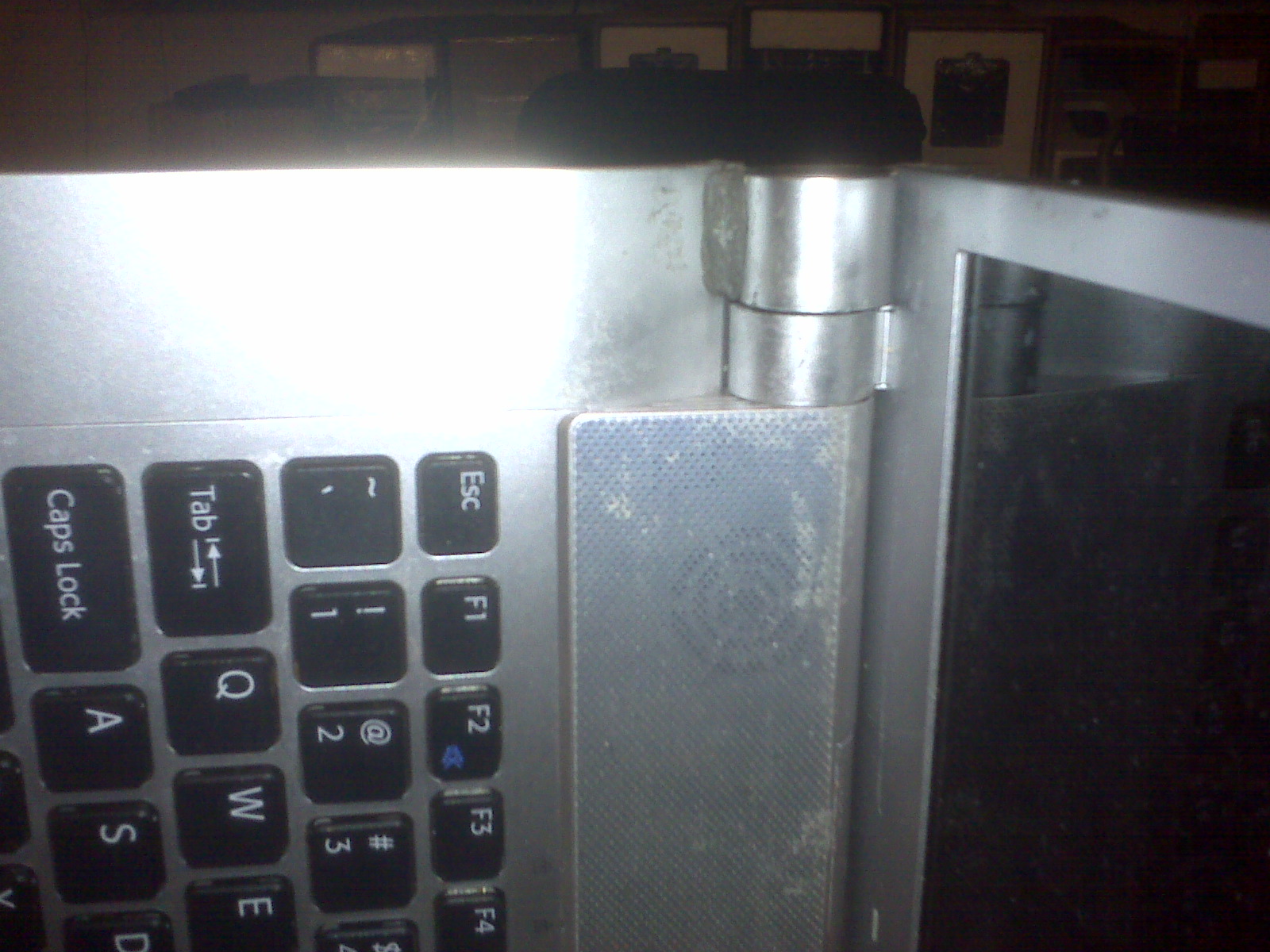
Laptop #2 Back View of Power Connection "Before Picture"

Laptop #2 Top View of Power Connection "After Picture"
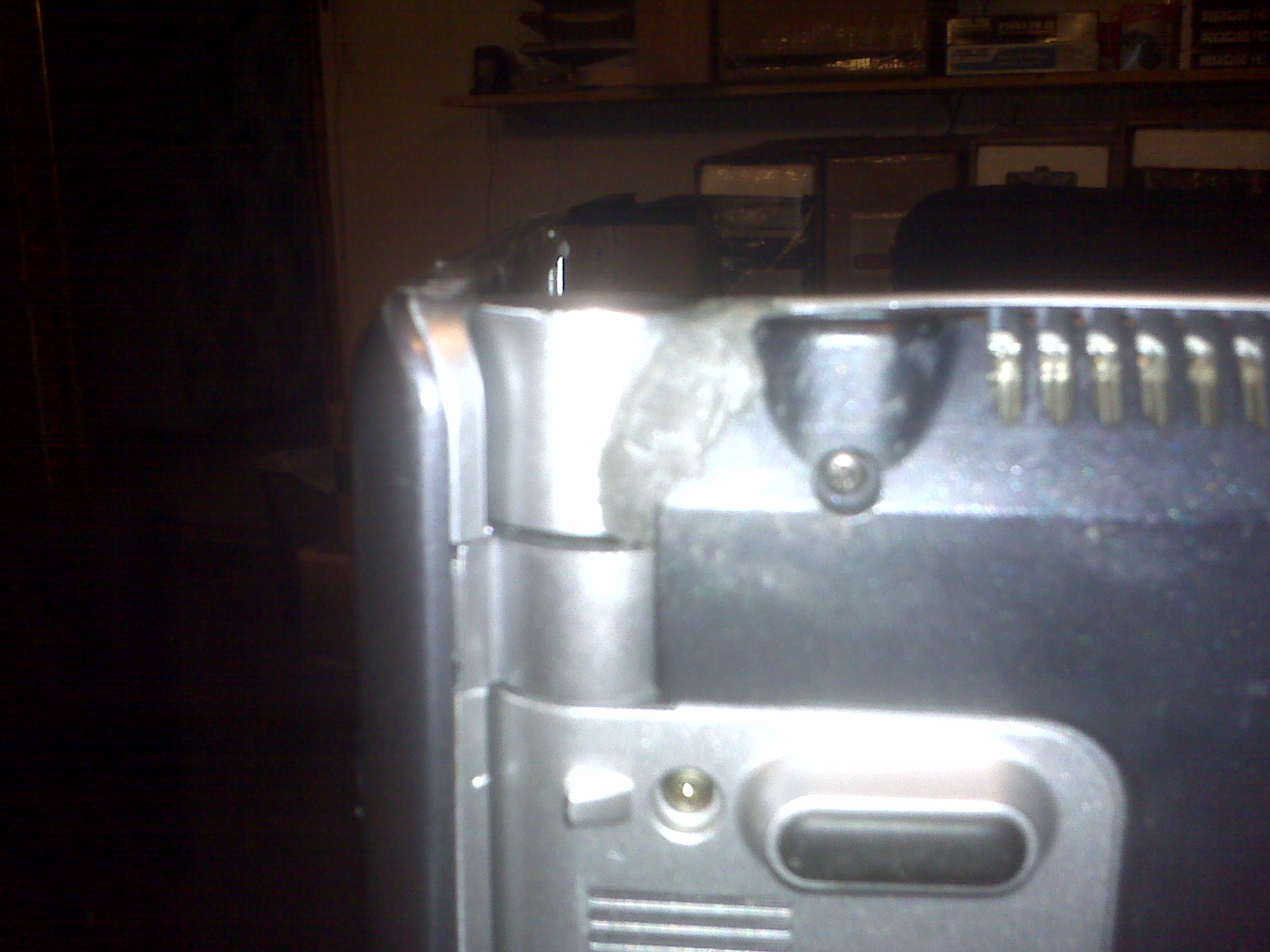
Laptop #2 Top View of Power Connection "After Picture"

Laptop #2 Bottom View of Power Connection "After Picture"

Laptop #2 Bottom View of Power Connection "After Picture"

DISCLAIMER
All information on site is for those interested in the common Notebook. This is not a solid answer to all needs and construction of your Notebook. We will not accept any responsibility for your Notebook nor damage that you do to it. This site is used as a guide in all your endeavors but not written in stone. Should you feel that your problem is above your current skills please get professional help.
Thank You!
Webmaster@BuildUrOwnPC.com
AKA: Master Mega Hertz
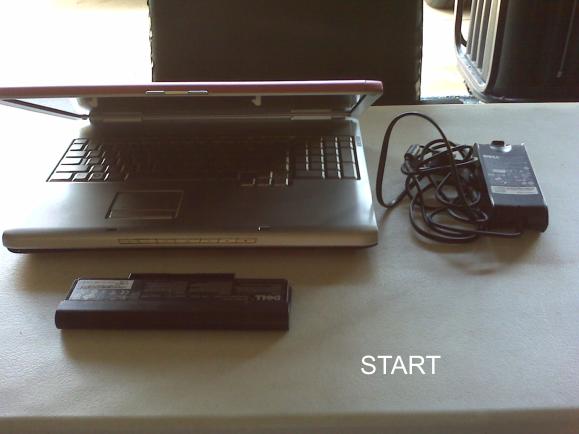
Optical Drive and Hard Drive Replacement

May 9th, 2010

The Optical drive and hard drive are the devices that burn out on your notebook usually without any warning.
#1 If your optical drive can no longer burn CD’s or cannot read or recognize that a CD is inside, it is time for a replacement.
#2 If your notebook constantly crashes or takes forever to simply start up, the possibilities is it may be time for a replacement hard drive. (Warning: Viruses can cause these very same symptoms).
The average price to have a tech to do this labor work for you will look something like this:
Diagnostic Testing: $60.00
Optical drive replacement: $30.00 (higher on some models).
Hard drive replacement: $40.00 (higher if the location of your hard drive is under the keyboard).
OS installation: $40.00 (using terms like “Reformat hard drive, Partition, and install drivers = higher).
Total Price = Too much money and this does not include the price on replacement parts!!!
Both devices are very simple to replace if you have the correct replacement. My task for today is to replace an optical drive, hard drive, and install Vista Premium on a notebook.

Tools needed for this task include:
1.Small cross-tip screwdriver (Phillips).
2.Optical drive ejection tool or create a Paperclip opener (straighten)
The notebook that I will be using for this task is a Dell Inspiron 1720 that was brought to our repair shop from a customer in Walters Oklahoma. On this model the customer cannot use the features that the optical drive offers (playing CD’s, movies…etc). Also, the hard drive has stopped functioning. Therefore, after installing both devices I will have to install the O.S. (Warning, if your operating system is installed on your hard drive in a separate partition, contact the manufacturer before purchasing a new hard drive to have your operating system sent to you on disk. Without your disk you will have to purchase a new operating system as well. Note: you may have to buy your O.S disk from your manufacturer but, they will be cheaper than a whole new retail version). I will also post pictures as I move from step to step to replace the optical drive and hard drive for this particular notebook.

***Prepare the notebook for disassembly***

Replace the Optical Drive

Replace the Optical Drive

Remove power adapter cord and battery pack from your notebook to ensure no power source is connected.

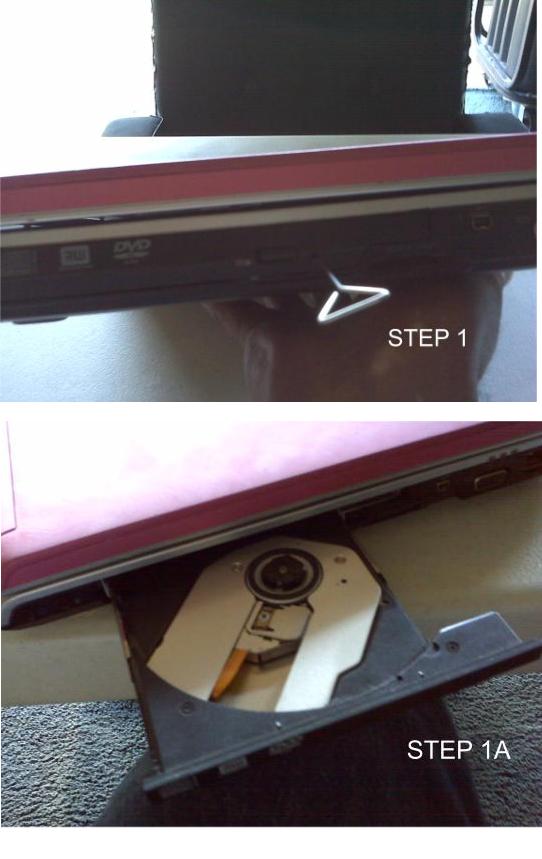
Step 1. Insert your straighten paperclip into the optical drive ejection port (small hole located in front of the optical drive). Push gently until the optical drive disk tray opens.

Step 1 Replace the Optical Drive

Step 1 Replace the Optical Drive

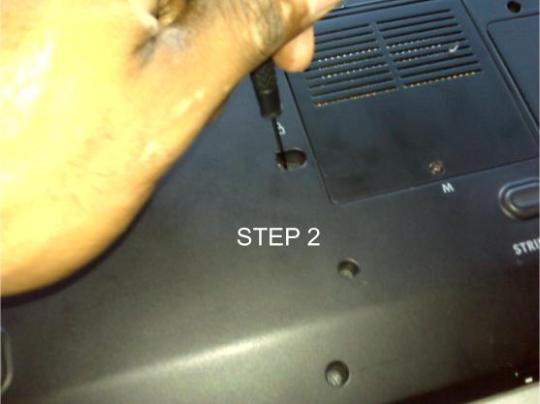
Step 2. Turn your notebook upside down to locate the lock screw that holds the optical drive in place and remove it. (Warning, this is not the solution for every model notebook, only this one!)

Step 2 Replace the Optical Drive

Step 2 Replace the Optical Drive

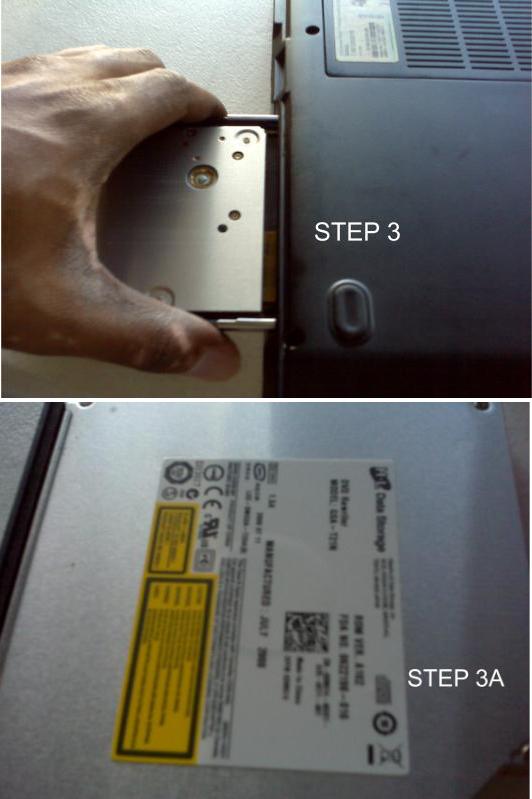
Step 3. While holding the optical drive with a firm grip, gently pull the drive completely out. Turn the drive over to locate the model number on the manufacturer tag to order a replacement optical drive.

Step 3 Replace the Optical Drive

Step 3 Replace the Optical Drive

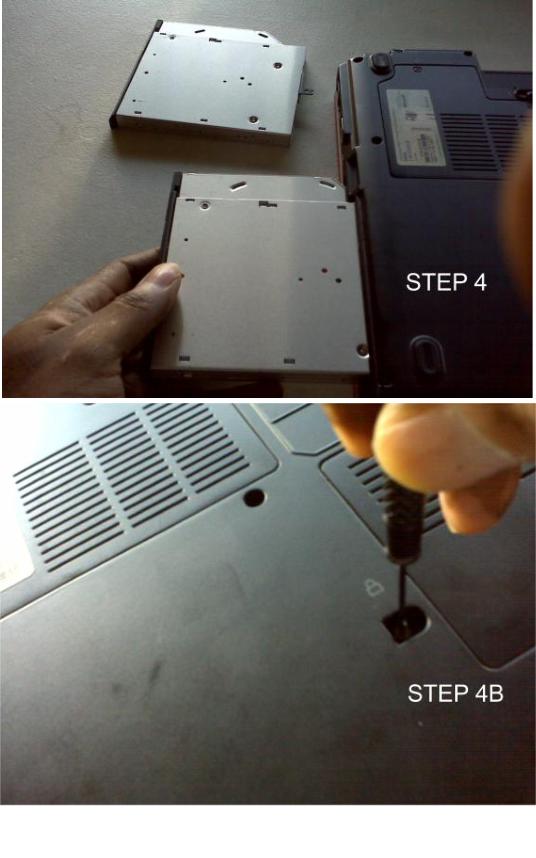
Step 4. Insert your new replacement optical drive (leave the tray closed). Replace the lock screw that holds the optical drive in place. The optical drive task is complete.

Step 4 Replace the Optical Drive

Step 4 Replace the Optical Drive

***Hard drive Replacement****

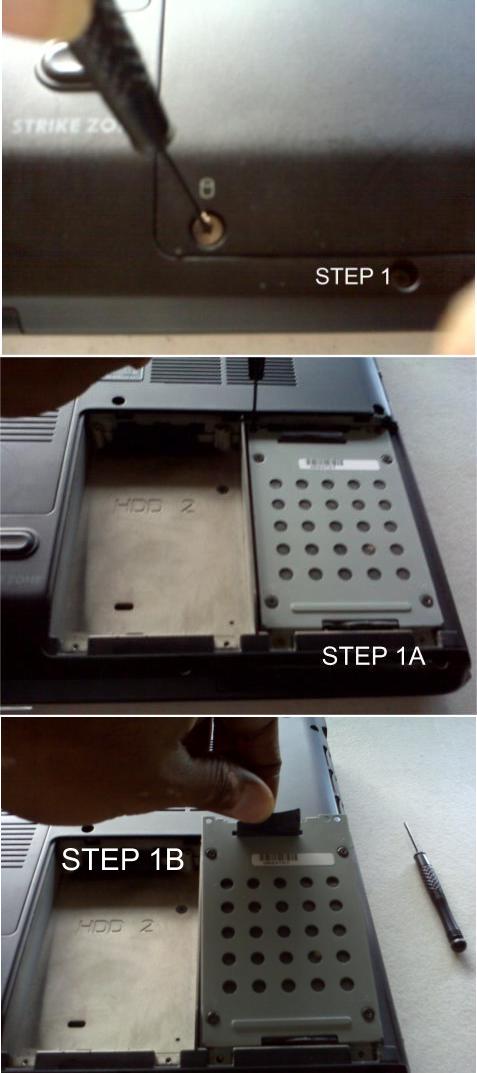
Step 1. While the bottom side of your notebook is facing you, locate the hard drive bay cover plate and remove the screws using a small-cross tip screwdriver, this model has 2 screws. Note: this is not the location for the hard drive on every model notebook, just this model. If you do not see a bay access door for your hard drive, your hard drive may be located underneath the keyboard. If so, search for “how to remove laptop keyboard for your model”. Now, remove the screws that are holding the hard drive cradle in place (this model has 3 screws holding the cradle, 2 on top and 1 in lower left corner).

Step 1 Hard Drive Replacement

Step 1 Hard Drive Replacement

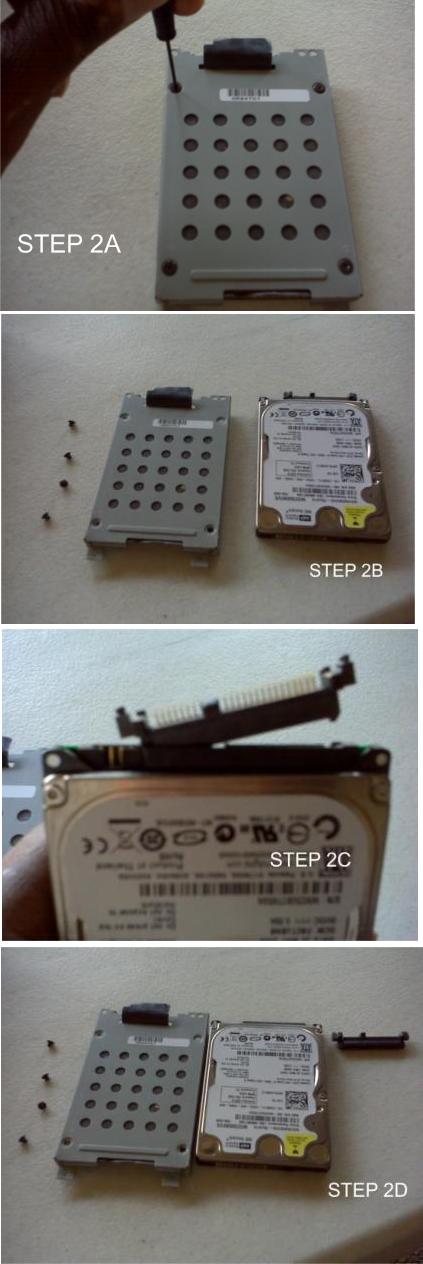
Step 2. Lift up on the cradle to remove it from the hard drive bay and sit it down on the table you are working on. Now, remove the 4 screws that are holding the hard drive inside the cradle and then remove the hard drive. Now, remove the SATA adapter on the hard drive and set everything aside for now. Use the model number located on your hard drive to order an exact replacement (If you plan to upgrade to a bigger storage, the model number is not required).

Step 2 Hard Drive Replacement

Step 2 Hard Drive Replacement

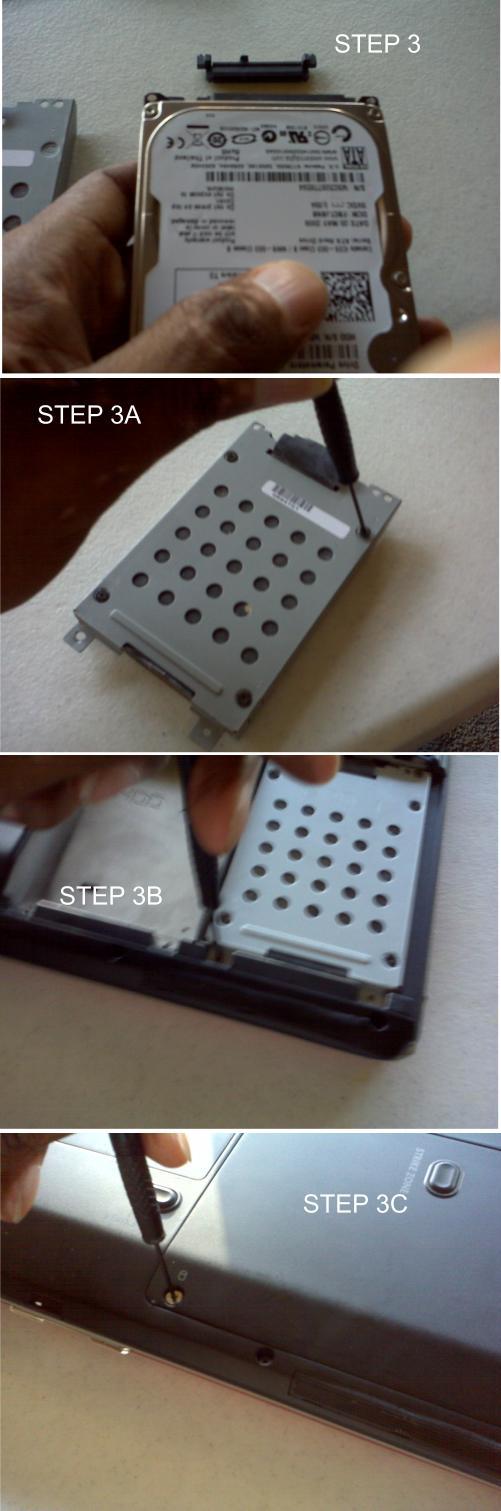
Step 3. Install the new hard drive. Add the SATA adapter to the new hard drive and then place it back in the cradle. Turn the cradle over to add the 4 screws and then place the cradle back into the bay. Secure the cradle inside the bay with the 3 cradle screws and then secure the bay cover door with the 2 remaining screws. Re-connect your battery pack. You have just completed the hard drive replacement task.

Step 3 Hard Drive Replacement

Step 3 Hard Drive Replacement

*** Install Microsoft Windows XP, Vista, or Windows 7 Operating System***

Step 1. Use the paperclip opener to open the optical drive tray or (turn the notebook on, eject the optical tray, insert the operating system CD, close the tray, and turn the notebook off).

Step 1 Install the Operating System

Step 1 Install the Operating System

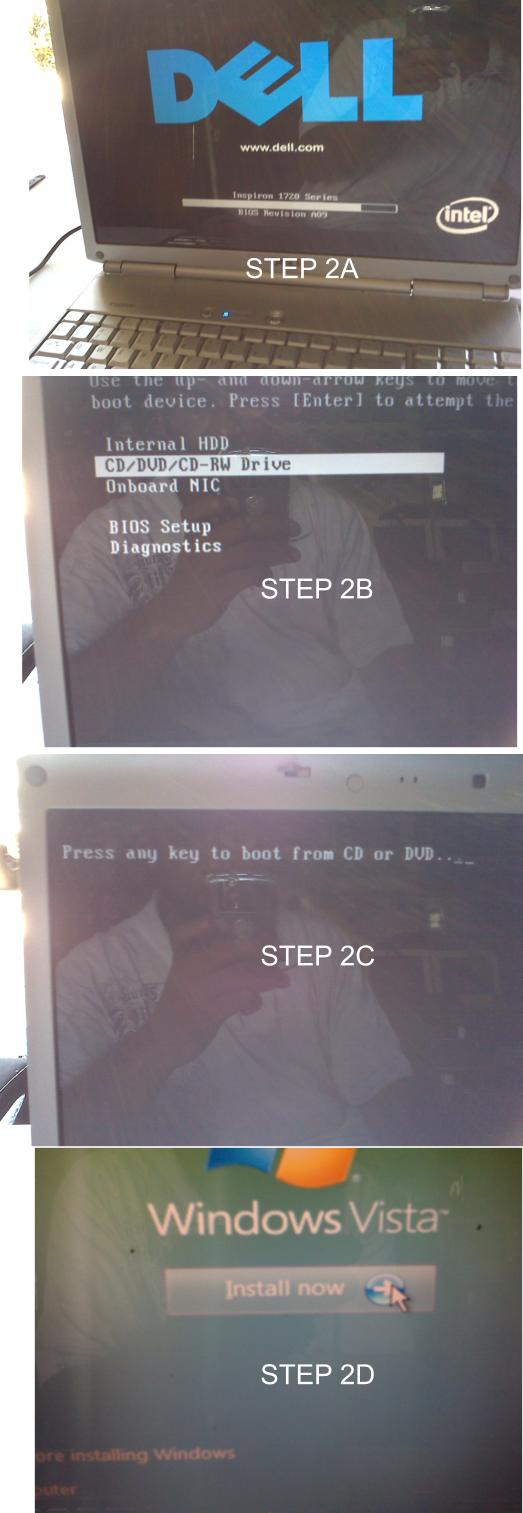
Step 2. Turn the notebook on, during the boot-up process hit F12 (for this model). On the next menu scroll down to select the CD Drive as the boot device and hit enter. Read and follow all on-screen prompts to install your OS. After the O.S. has installed, insert all driver CD’s and additional software CD’s to complete your system. This Task is Complete!

Step 2 Install the Operating System

Step 2 Install the Operating System

DISCLAIMER
All information on site is for those interested in the common Notebook. This is not a solid answer to all needs and construction of your Notebook. We will not accept any responsibility for your Notebook nor damage that you do to it. This site is used as a guide in all your endeavors but not written in stone. Should you feel that your problem is above your current skills please get professional help.

Thank You!
Webmaster@BuildUrOwnPC.com
AKA: Master Mega Hertz
LCD Inverter Replacement for Laptops / Notebooks

May 9th, 2010

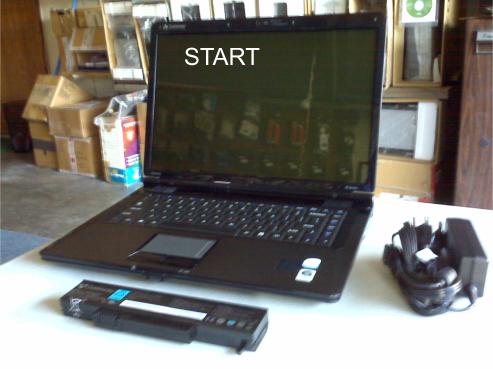
The notebook that I will be using for this task is a Gateway M-7315u that was brought to our repair shop from a customer in Moore Oklahoma. On this model the screen display is very dim. This type of display can only happen when the back light has burn out or the inverter is bad. It is highly recommended to change out the inverter first (only applies to notebook models that have non-led LCD screens) to see if the display problem will be corrected. If not, the next step is to change out the back-light (if you have the technical knowledge) or do something as drastic as change out the whole screen. My task for today is to change out the inverter on this notebook. I will also post pictures as I move from step to step to remove and replace this particular notebook inverter.

Tools needed for this task include:
1. Small cross-tip screwdriver (Phillips)
2. Tweezers or similar tool
3. Small plastic flat-tip screwdriver or any type of hard plastic that is very thin and durable.

***Prepare the notebook for disassembly***

Prepare the notebook for disassembly

Prepare the notebook for disassembly

Remove power adapter cord and battery pack from your notebook to ensure no power source is connected.
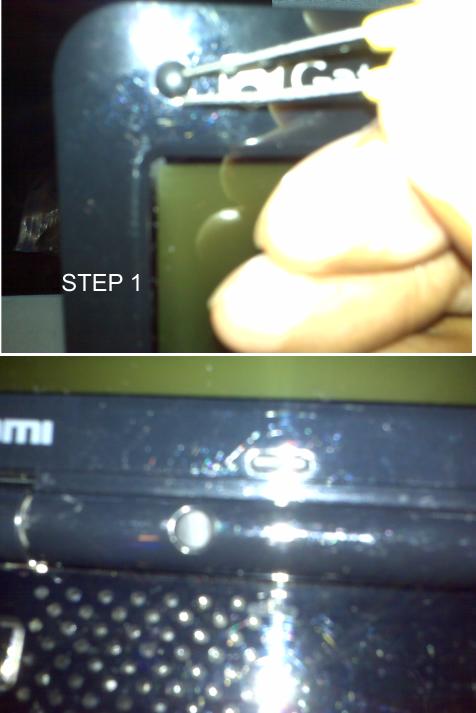
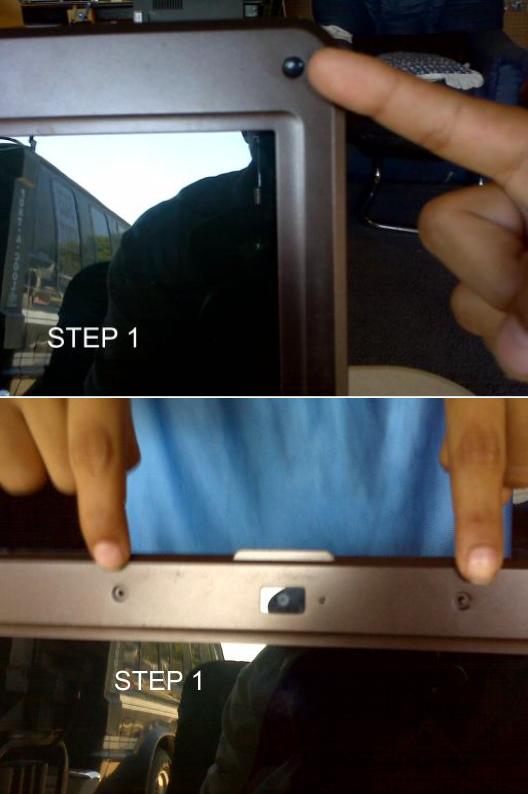
Step 1. Open the notebook as usual and look at the frame surrounding the screen (The bezel). You will notice at least 6 small rubber caps, 4 across the top portion of the screen and 2 between the hinges.

Step 1 Change the LCD Inverter

Step 1 Replace the LCD Inverter

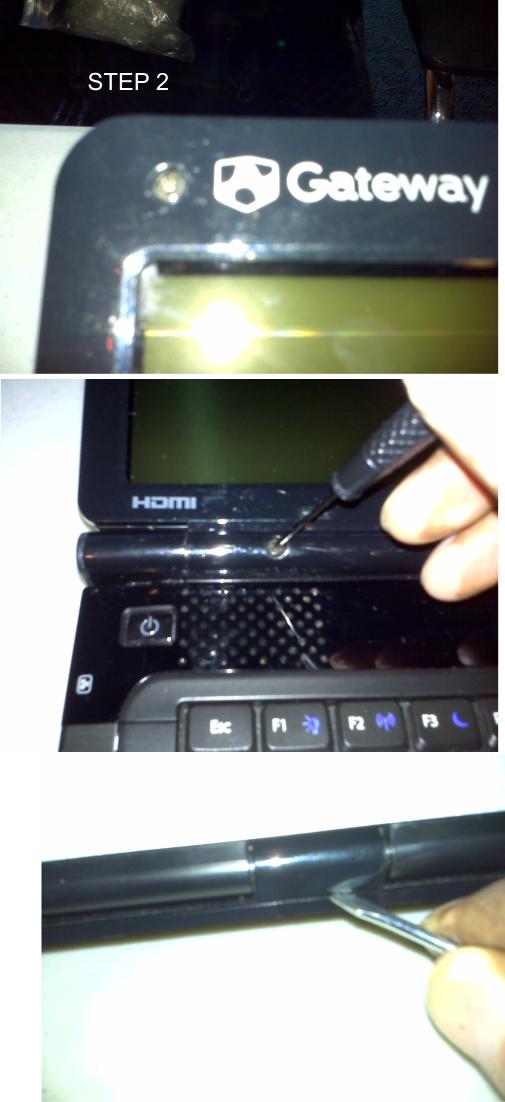
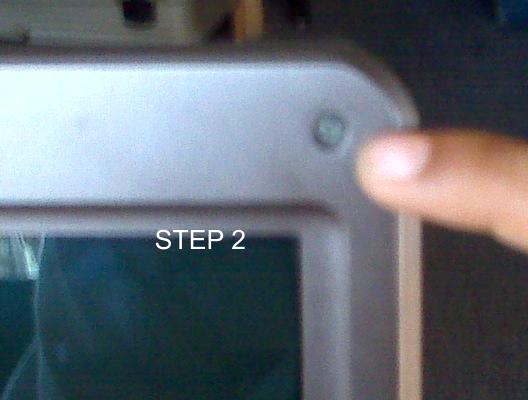
Step 2. Use tweezers or a similar device to remove the rubber caps to expose the screws underneath all 6 rubber caps. Use a small cross-tip (Phillips) to remove all 6 screws. Turn your notebook around with the cover facing you to pry the middle hinge cover from the base of the notebook.

Step 2 Change the LCD Inverter

Step 2 Replace the LCD Inverter

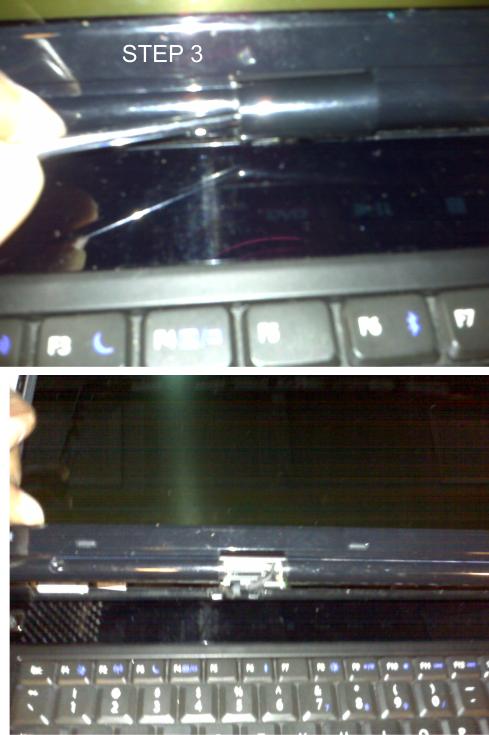
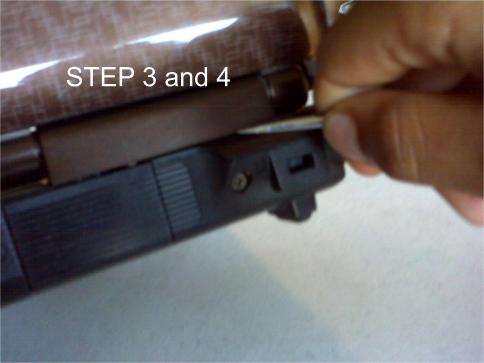
Step 3. Turn your notebook around to have the screen facing you and pry the hinge cover from the base of the notebook. Push your LCD screen backward slowly (opposite of closing) to provide more room to completely pry off the middle hinge cover.

Step 3 Replace the LCD Inverter

Step 3 Replace the LCD Inverter

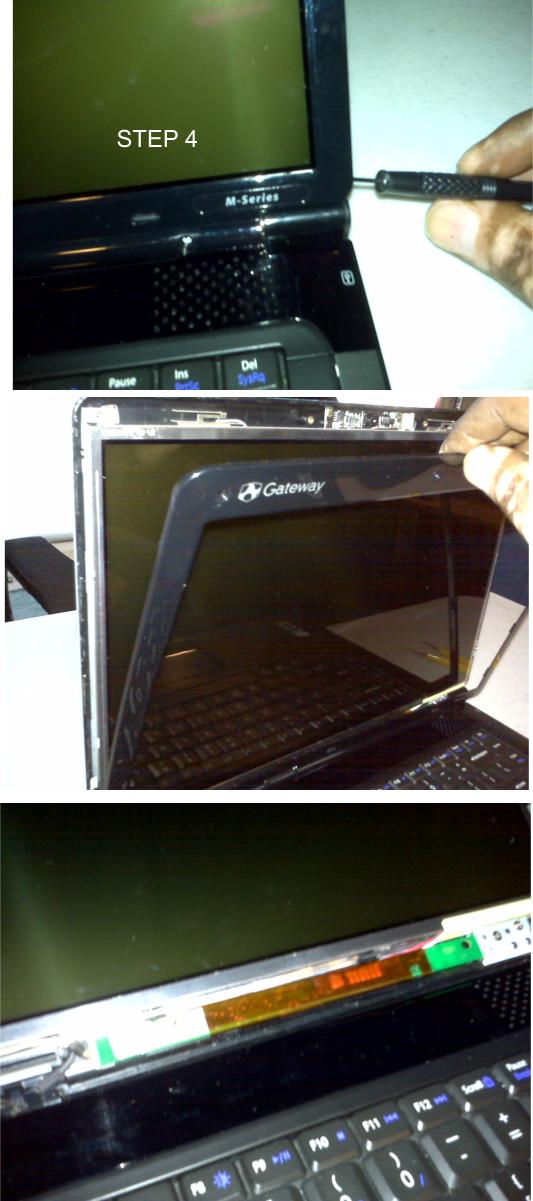
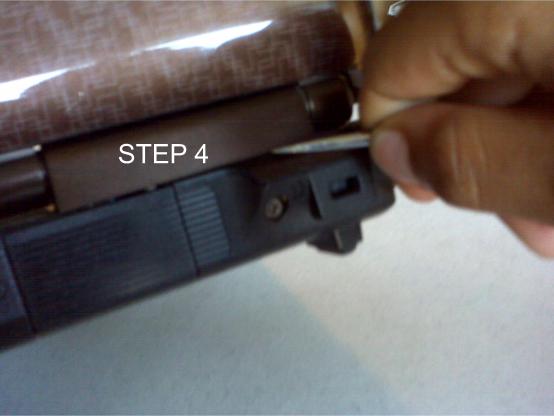
Step 4. Now, it is time to remove the frame (The bezel) surrounding the LCD screen. Use your plastic flat-tip screwdriver or similar device to pry gently underneath the plastic LCD cover frame. You may hear a pop or click, do not worry it is only the frame clamps releasing from the cover. Continue to gently pry from one lower corner all the way around to the other lower corner of the screen. Now, gently pry the screen frame left to right or vice-versa until you have completely removed the entire plastic LCD screen cover from your notebook and place the frame out of your way.

Step 4 Replace the LCD Inverter

Step 4 Replace the LCD Inverter

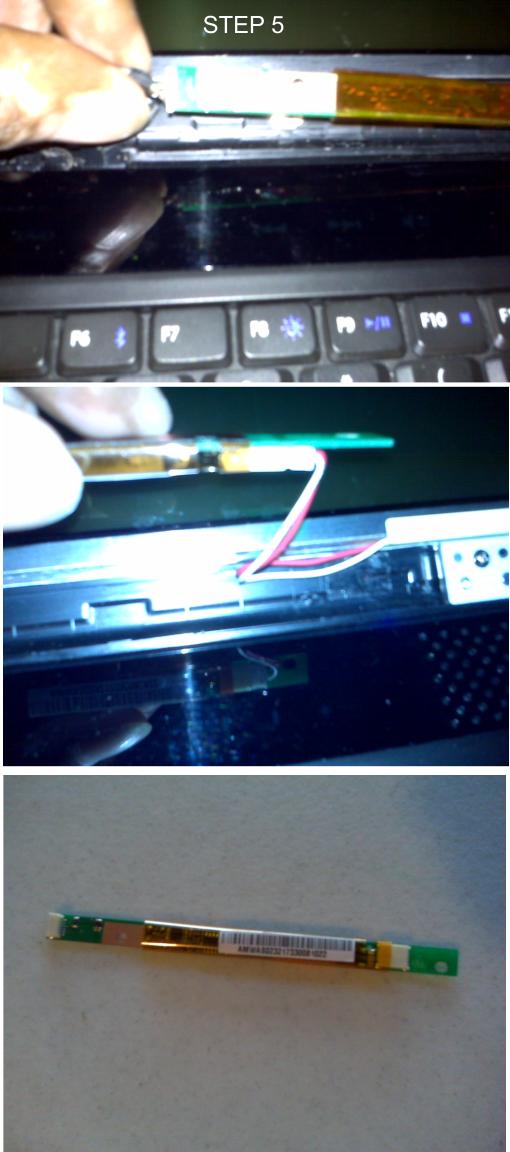
Step 5. Now, remove the screw that is holding the inverter in place, remove the cables from the inverter (1 on each side), and then set the inverter aside for now. Conduct a search for a replacement inverter using the model number located on manufacturer tag on the old inverter.

Step 5 Replace the LCD Inverter

Step 5 Replace the LCD Inverter

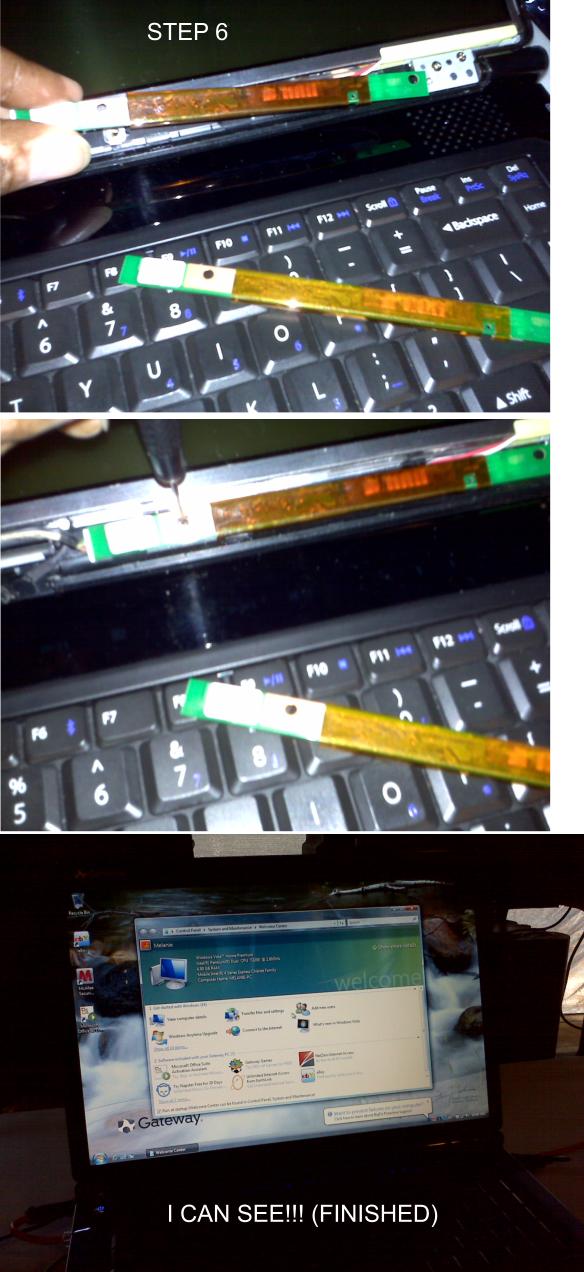
Step 6. Replace the inverter, let’s assume you have ordered your inverter, it has arrived and you are now ready to install it. To complete this task, simply start with step 5 back to #1. Instead of removing you are now replacing. (Good luck!) This task is now complete.

Step 6 Replace the LCD Inverter

Step 6 Replace the LCD Inverter

DISCLAIMER
All information on site is for those interested in the common Notebook. This is not a solid answer to all needs and construction of your Notebook. We will not accept any responsibility for your Notebook nor damage that you do to it. This site is used as a guide in all your endeavors but not written in stone. Should you feel that your problem is above your current skills please get professional help.
Thank You!
Webmaster@BuildUrOwnPC.com
AKA: Master Mega Hertz
Laptop and Notebook Screen Replacement

May 9th, 2010

The display screen on your notebook is your eyes to view the rest of the world, once it goes bad (non-viewable) you are blind. Selecting a LCD screen replacement can be time consuming and costly if you are not careful.
#1 If you are searching for a replacement screen using the model number and brand of your notebook you will be wasting your time and efforts. The majority of all screens have their own model and / or serial number. These numbers are what you need to do a successful search for the correct replacement screen. The average price to have a tech to do this for you is $75.00 – $125.00. This is unbelievable right? The answer is not really! That tech should be paid for the service that he/she has provided to you. If the price is too expensive for you, learn to do it yourself!
#2 Costly, there is no doubt that buying the wrong screen will cause you to lose money. The majority of all RMA’s has a penalty for your ignorance. Returning a product for a refund usually include a restocking fee between 10% – 20% and sometimes not refundable at all. Therefore, follow these few steps to look for your notebook screen model / serial number.

Tools needed for this task include:

1. Small cross-tip screwdriver
2. Tweezers or similar tool
3. Small plastic flat-tip screwdriver or any type of hard plastic that is very thin and durable.

The notebook that I will be using for this task is an ASUS X83VM that was brought to our repair shop from a local customer. On this model the screen is broken from the inside, usually this can only happen by someone actually sitting on top of the notebook while the lid is closed (like a small child). But, regardless of how this notebook received this type of damage it was brought in for repairs. I will also post pictures as I move from step to step to locate this particular notebook screen model number.

***Prepare the notebook for disassembly***

Remove power adapter cord and battery pack from your notebook to ensure no power source is connected.

Step 1. Open the notebook as usual and look at the frame surrounding the screen. You will notice at least 6 small rubber caps, 1 in each corner and 2 in the center top portion of the screen. Usually, 1 on both sides of the built-in camera if your model is equipped with one.

Step 1 LCD Screen Replacement

Step 1 LCD Screen Replacement

Step 2. Use tweezers or a similar object to remove the rubber caps to expose the screws underneath all 6 rubber caps.

Step 2 LCD Screen Replacement

Step 2 LCD Screen Replacement

Step 3. Use a small cross-tip (Phillips) to remove all 6 screws. Turn your notebook around with the cover facing you to look for 2 additional screws that may be holding the hinge cover in place, remove them. (This model does not have any but your notebook may have the additional screws.

Step 3 LCD Screen Replacement

Step 3 LCD Screen Replacement

Step 4. While your notebook cover is facing you, use your small flat-tip screw driver to pry the LCD hinge cover from the base of the notebook on both sides. Now turn your notebook around to have the screen facing you and pry the hinge cover from the base of the notebook. Push your LCD screen backward slowly (opposite of closing) to provide more room to completely pry off both hinge covers.

Step 4 LCD Screen Replacement

Step 4 LCD Screen Replacement

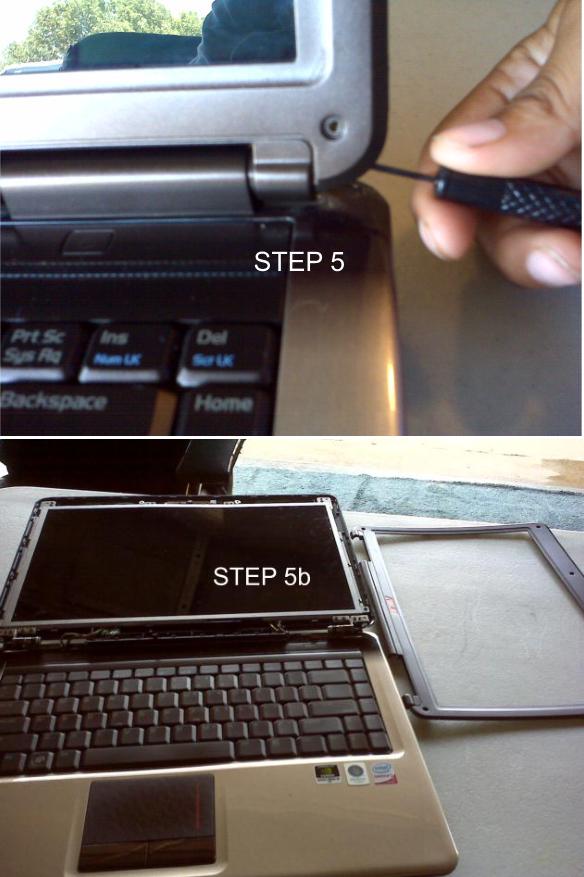
Step 5. Now, it is time to remove the frame surrounding the LCD screen. Start with one of the lower corners (I’m right-handed therefore; I will start at the right lower corner). Use your plastic flat-tip screwdriver or similar device to pry gently underneath the plastic LCD cover frame. You may hear a pop or click, do not worry it is only the frame clamps releasing from the cover. Continue to gently pry from one lower corner all the way around to the other lower corner of the screen. Now, gently pry the screen frame left to right or vice-versa until you have completely removed the entire plastic LCD screen cover from your notebook and place the frame out of your way.

Step 5 LCD Screen Replacement

Step 5 LCD Screen Replacement

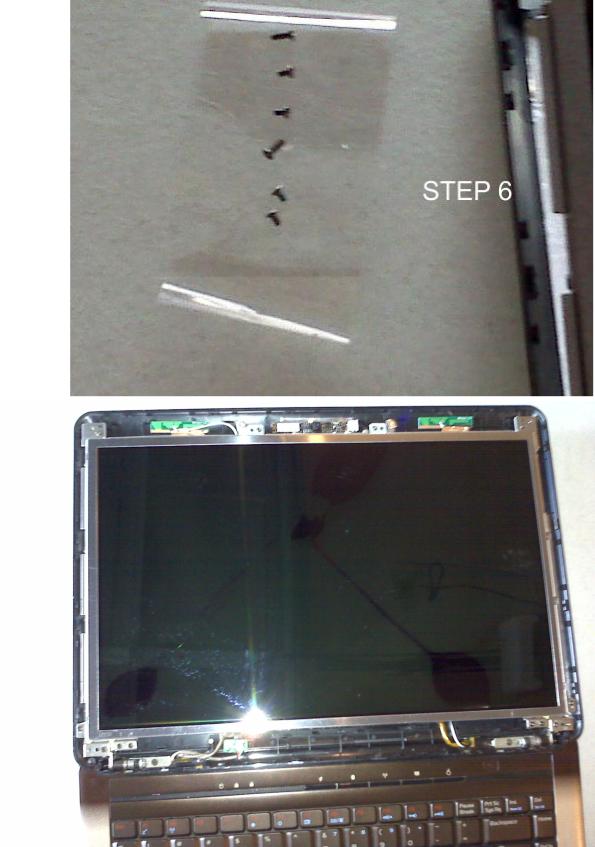
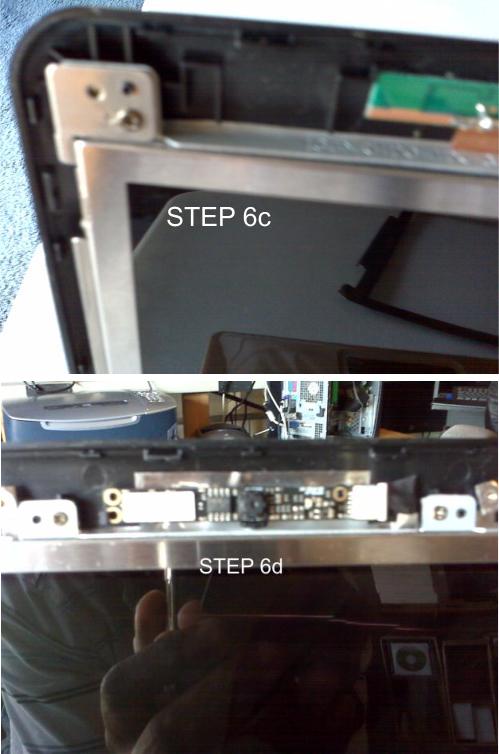
Step 6. Now, it is time to remove the LCD screen metal frame from the back lid cover of the notebook. Place a strip of tape on the table you are working on with each end stuck to the table and the sticky side facing up. I use this method to contain the screws that I’m about to remove. (If you have a better way like a box with separate side walls inside of it, this will be a good time to set it aside to use). Using your small cross-tip screw driver, from top left to right (I’m retired military, so this method works for me). Unscrew all four of the corner screws surrounding the metal frame (place the screws on the tape in the order that you removed them) to unlatch it from the lid cover. You may have 2 additional screws at the top of the frame, 1 on each side of the built-in camera to remove. This model has them but, it’s not necessary to remove them on this model.

Step 6 LCD Screen Replacement

Step 6 LCD Screen Replacement

Step 6 LCD Screen Replacement

Step 6 LCD Screen Replacement

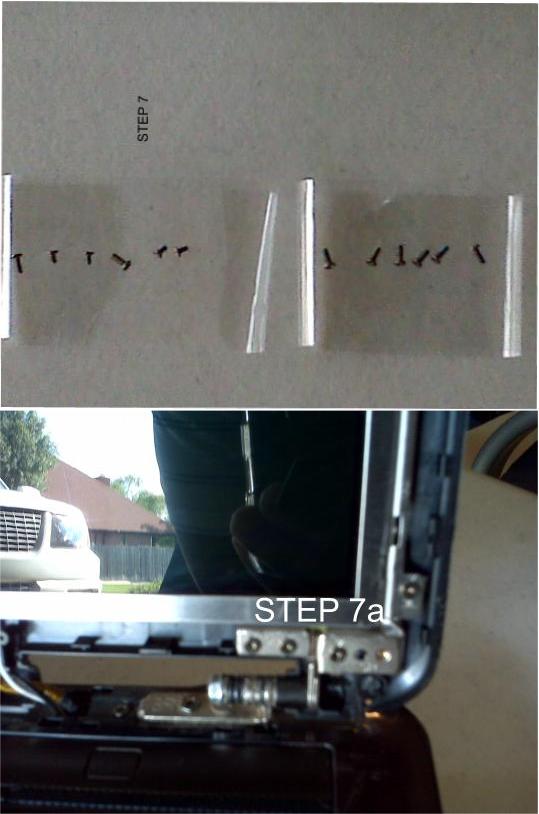
Step 7. Now it’s time to remove the remaining screws from the lower part of the frame that may be located above the actual metal hinge. Place a separate strip of tape on the table for these screws. While holding the lid cover with your free hand unscrew the remaining screws and place them on the tape in the order as you remove them.

Step 7 LCD Screen Replacement

Step 7 LCD Screen Replacement

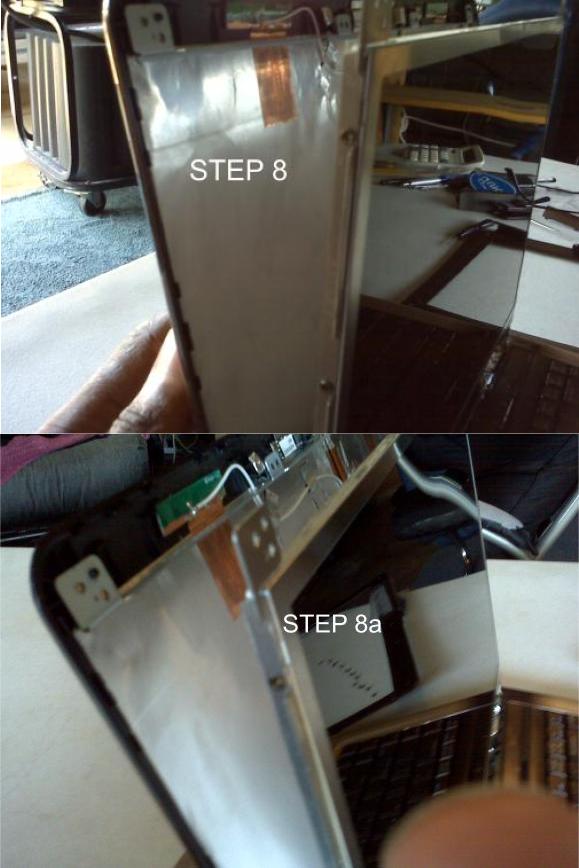
Step 8. While holding the LCD screen metal frame and back cover lid, move the entire screen back to it’s upright position. Now, gently let the back cover lid down. (On your model, you may have a ribbon that is taped to the back of the screen and stopping the back cover from completely lying down. That is ok for now. Do not remove the ribbon unless you cannot see the white tag with your screen model / serial number that is on the back of the actual screen).

Step 8 LCD Screen Replacement

Step 8 LCD Screen Replacement

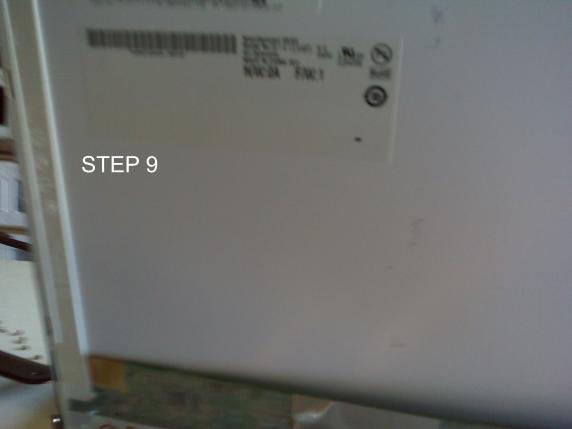
Step 9. Now you write your model /serial number down and do your own search for the correct replacement screen that you need to order.

Step 9 LCD Screen Replacement

Step 9 LCD Screen Replacement

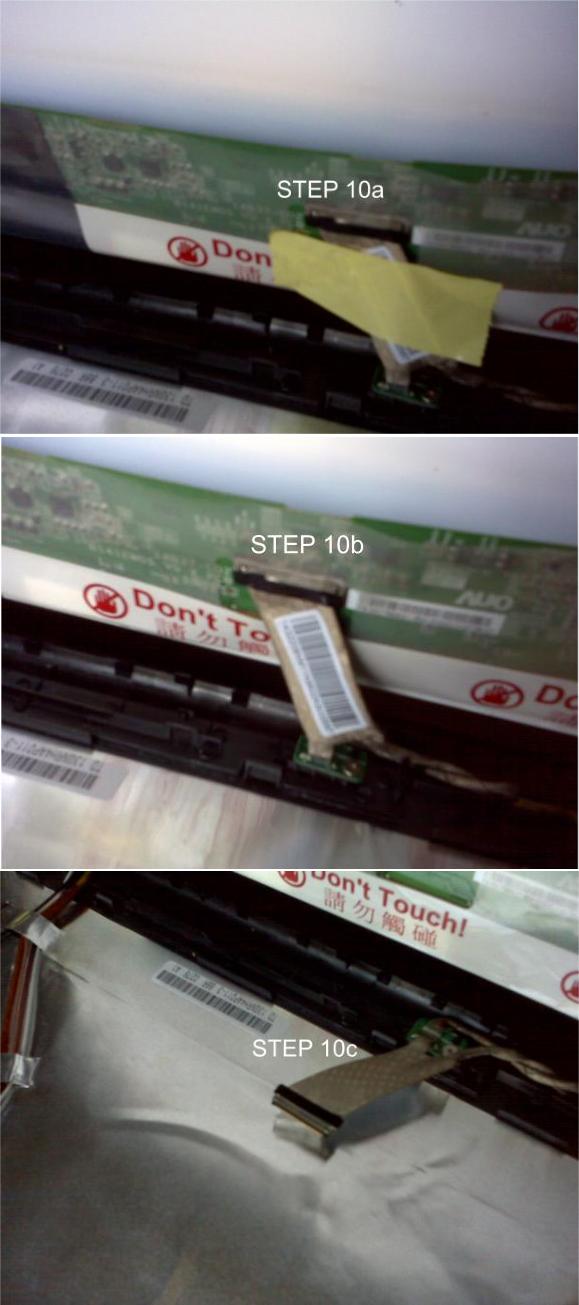
Step 10. Replace the screen, let’s assume you have ordered your screen, it has arrived and you are now ready to replace your screen. The next step is to remove the ribbon that is attached to the back of your screen. On this model, the ribbon is located at the bottom (On Your model it may be at the top).

Step 10 LCD Screen Replacement

Step 10 LCD Screen Replacement

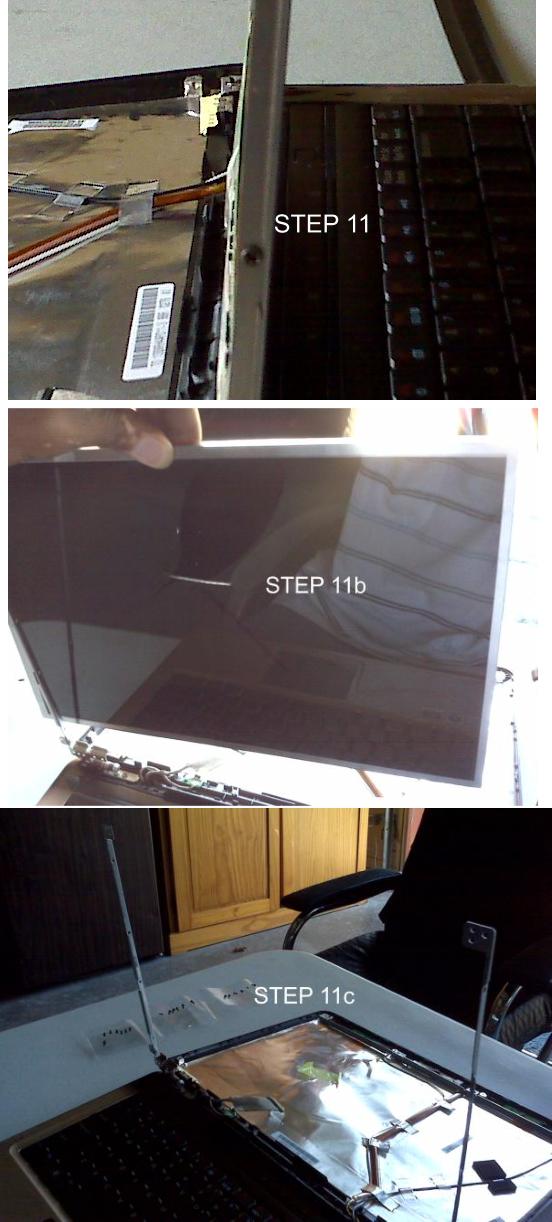
Step 11. Now it is time to remove the actual LCD from the metal frame. On both sides of the screen there are 2 to 4 screws on each side. This model has four. Set aside a third strip of tape for these screws. While holding one side of the LCD screen with your free hand unscrew the other side with a small cross-tip screwdriver and place the screws on that third strip of tape in the order that you take them out. Switch over and do the same for the other side while your free hand is still holding the screen. Now, all screws are out, gently remove the screen by lifting it up and out of the metal frame and set it aside.

Step 11 LCD Screen Replacement

Step 11 LCD Screen Replacement

Step 12. Replace your screen with the new screen (Hopefully, you did get the correct one) and slide it into the metal frame for assembly. To complete this task, simply start with step 11 back to #1. Instead of removing you are now replacing. (Good luck!) This task is now complete.

DISCLAIMER
All information on site is for those interested in the common Notebook. This is not a solid answer to all needs and construction of your Notebook. We will not accept any responsibility for your Notebook nor damage that you do to it. This site is used as a guide in all your endeavors but not written in stone. Should you feel that your problem is above your current skills please get professional help.

Thank You!
Webmaster@BuildUrOwnPC.com
AKA: Master Mega Hertz